Archive

Posts Tagged ‘ssl’

How to properly use SSL redirects without getting certificate error messages

March 7th, 2011 8 comments

Today I would like to go over proper URL redirection when using SSL but first I would like to preface this by describing what proper URL redirection is. Anytime you inherit, consult for, or build an environment out from scratch, you must always verify every vector a user may use to get to your website. You must plan accordingly to intercept and redirect the user transparently when they manage to get to URLs that you don’t want them to use. They should never be prompted for an action (such as “click here” to continue) or receive a warning/error message if at all possible.

A 301 redirect is in my opinion to best way to steer a user to where they need to go. A 301 tells the browser/search engine spider that the redirect is permanent. In the case of spiders, a 301 will tell it only the destination URL should be indexed. A 301 redirect works fine over regular HTTP connections and all web servers and load balancers are capable of performing them. Alternatively, you can also use a 302 redirect but this tells spiders the redirect is temporary. Not very good for SEO purposes if your organization is concerned about that.

The problem occurs when you try to do a 301 or 302 redirect to an SSL URL (HTTPS URL) but the SSL certificate for that URL does not match the domain. It will throw a warning message saying the connection is untrusted or that there is a problem with the website’s security certificate in the user’s browser. Most users will come across on an HTTP connection such as http://www.domain.com and if needed, the network/web engineer would setup a web server or load balancer policy to perform the 301 redirect to https://www.domain.com. The certificate in this case is valid for “www.domain.com” and will not throw an error. But what if the user somehow manages to go directly https://domain.com over an SSL connection? It would throw an error unless the certificate is valid for “domain.com” which is most cases it is not. Even if you had a wildcard certificate for “*.domain.com”, it would not prevent you from getting a warning because this specifies any subdomain is valid, but does not cover just the domain by itself. Your user will always get a warning message. You may think you could write a policy on your load balancer to do the redirect but that will not work. The reason is a TCP connection has to be established first and during the SSL handshake before the connection is fully established is when the user gets the warning. The policy will never run as a result until after the user accepts the warning message and the SSL handshake is completed.

There are a couple of ways to get around this. The cleanest way of doing it is using a Subject Alternate Name (SAN) SSL certificate. A SAN cert allows you to specify exactly what domains you would like the certificate to be valid for. The price on SAN certs is much higher than a standard certificate or even a wildcard certificate and they are only available from a handful of certificate authorities at this time. They require a lot more validation typically and the validation term is usually a bit lower than a standard certificate.

Let’s compare a SAN SSL certificate vs. a Wildcard SSL certificate. A single SAN cert would cover me for the following if I wanted it to:

domain.com
www.domain.com
www.myotherdomain.com

while a single Wilcard SSL cert would only be able to do the following:

*.domain.com

It is possible to combine both so you could get a SAN + Wildcard SSL certificate that will cover all of the above. To my knowledge, the only certificate authority that currently offers them is DigiCert. They have a pretty nice write up about their cert here:

http://www.digicert.com/ssl-support/wildcard-san-names.htm

I once asked a VeriSign managed PKI rep why they don’t offer wildcard + SAN like DigiCert and he went on for 5 minutes about ICAAN policy. Why one cert authority can issue while another won’t, I am guessing it likely has to do with acquisition costs for them. You have to remember, VeriSign is still trying to convince people to buy SGC SSL certs (for legacy browsers) at a premium price when in my opinion, SGC has been obsolete for years now and any web/network engineer that knows about SSL encryption has anything below 128 bit locked down anyhow. But I guess if people will buy it, they will sell it. Either there just hasn’t been enough demand or their costs are too high for wildcard + SAN certs. Not trying to pick on VeriSign, just making an observation. I still purchase certs from them regularly (non-SGC of course). Most every large organization does, but sometimes the wildcard + SAN might be the best solution for you. I know some CDN providers like Akamai sometimes have a need for them and purchase through DigiCert.

Getting back on subject, a second way of getting around this is purchasing two standard SSL certifcates and putting them on different IPs. One will do a 301 redirect to an another. So you would have to purchase an SSL cert for domain.com AND www.domain.com.

Let’s look at some real world examples to better understand this. I am going to compare Chase, Bank of America, Citrix, and Amazon.com to show the different types of solutions for this problem.

Chase.com
Chase uses SAN certs from VeriSign. Again, SAN certs are a very pricey approach but the easiest. Your configuration on your load balancer and servers is minimal since one SSL cert will take care of everything. This will result is less overhead on your load balancers as well which is a big plus when you serve up millions of connections.

Go to https://chase.com, it will immediately do a 301 redirect to https://www.chase.com. Here is a screenshot showing the 301 redirect to https://www.chase.com and the certificate which shows the 4 Subject Alt Names Chase’s cert is valid for:

As you can see, the certificate is valid for www.chase.com, chase.com, www.yourchasefreed.com, and yourchasefreedom.com. You will also notice that the cert is only valid for a 1 yr period. Typically CAs will try and limit you to a max of 2 years on SAN SSL certs and EV SSL certs but it is always best practice to keep them to 1 year just in case your cert keys were compromised. A SAN cert can have many domains leaving you very exposed, so it is a good idea to change it every year for this reason.

Bankofamerica.com
Bank of America uses standard SSL certs from VeriSign. Cheaper but a little extra configuration involved on the load balancer. Let’s take a look at what happens when you visit https://bankofamerica.com:

You will be 301 redirected to https://www.bankofamerica.com just as you were with Chase. But this time using a standard SSL cert with one CN name as you saw above. You can verify this by pinging bankofamerica.com which resolves to 171.159.100.173 and typing just the IP into the browser over SSL as https://171.159.100.173. This will give you an SSL error before the 301 redirect gets a chance to run and you can view the cert:

So just to be clear, typing https://bankofamerica.com will use the above cert which is valid, will complete the connection, run a policy that will do a 301 redirect to https://www.bankofamerica.com, cert for https://www.bankofamerica.com is validated, then the connection is completed and the page is served up. A perfectly good way around the problem using standard SSL certs as opposed to SAN SSL certs.

Citrix.com
Citrix is another example of using the standard SSL certificate redirect method much like Bank of America. But they do not leverage the 301 redirect at all. Instead they use a 302 temporary redirect pointed directly to their index page. The 302 is likely done for SEO purposes so the “www.citrix.com” domain is indexed in search results and not the “www.citrix.com/lang/English/home.asp” destination page. In this case, a Netscaler with either a responder policy or content switching policy will send you to https://www.citrix.com or https://citrix.com which both display the same content. They are on different VIPs with different SSL certs. One is a standard cert while the other a wildcard. They could have used two standard certs if they wanted to as well of course but in this case, they may use the wildcard for other subdomains, GSLB, etc. and the standard cert is meant to solely capture those users typing in an incorrect URL:

Amazon.com
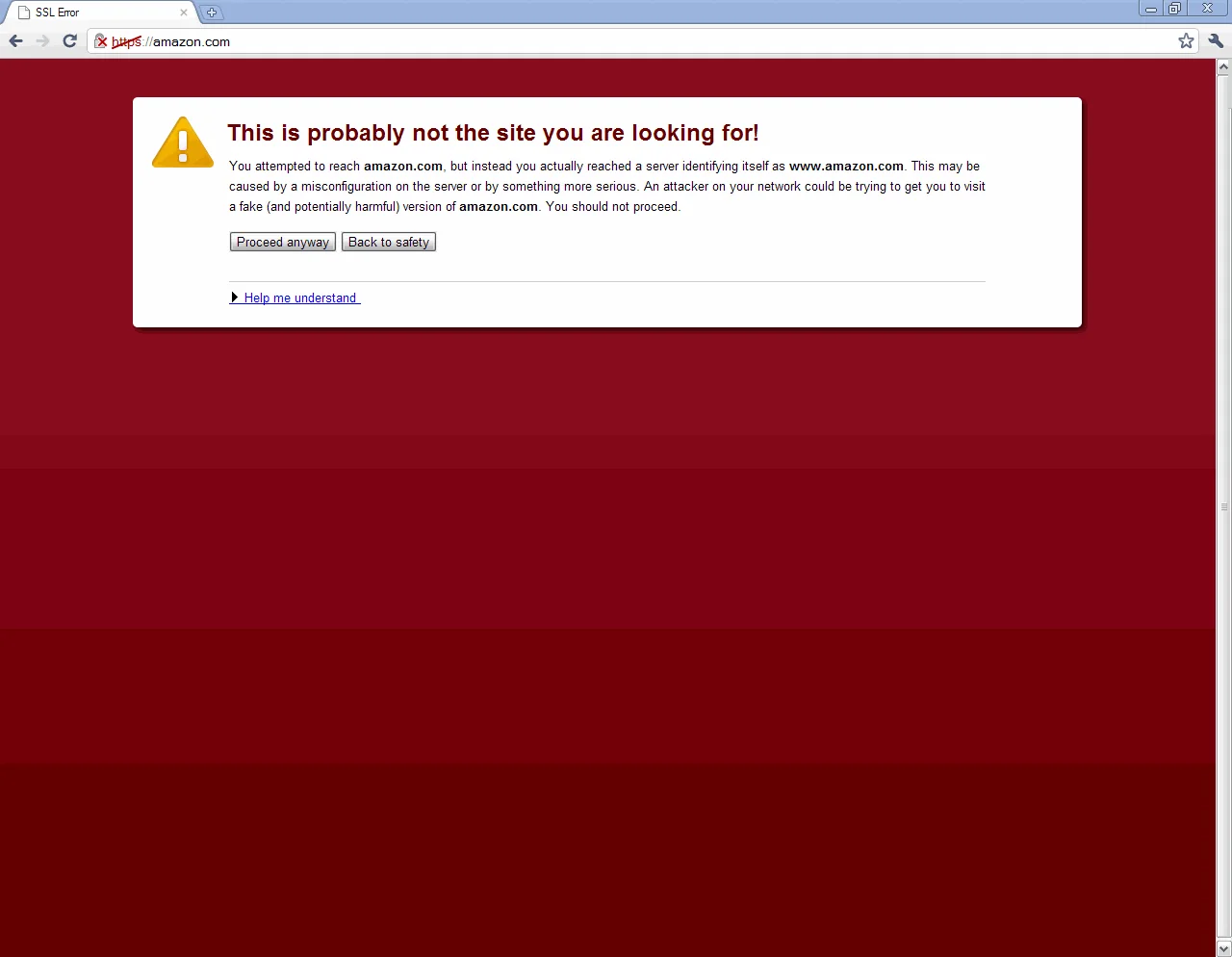
Woops! The world’s largest online retailer does not seem to be redirecting customers that arrive on an irregular URL over SSL properly. If you go to https://amazon.com, it will give you a “This Connection is Untrusted” error. It’s not the end of the world but still, a user should never see a message like this.

In IE for example, it will say “There is a problem with this website’s security certificate”. Again, not the end of the world. But in Chrome, the error will have a bright red background and say “This is probably not the site you are looking for!
You attempted to reach amazon.com, but instead you actually reached a server identifying itself as www.amazon.com. This may be caused by a misconfiguration on the server or by something more serious. An attacker on your network could be trying to get you to visit a fake (and potentially harmful) version of amazon.com. You should not proceed.”

Yikes! Do you really want your users to see a message like this?

Interesting to note however, going to https://www.amazon.com does a 301 redirect to http://www.amazon.com. Obviously Amazon wants the customer to use HTTP rather than SSL on their homepage. Much less overheard on their load balancers plus they don’t have a login box directly on their home page so no need for SSL to begin with. This is thought out well but I am puzzled as to why they don’t do anything about https://amazon.com. As you saw with Chase, Bank of America, and Citrix, the different solutions are very easy to implement.

I hope this article has been helpful. Please post a reply if you have a different solution to the problem that I did not cover. I would love to hear your insights. :)

Verifying that SSLv2 and weak ciphers are disabled for PCI compliance

August 9th, 2010 4 comments

There are 4 easy ways to check that SSLv2 and weak ciphers are disabled on your web servers and appliances. SSLv2 is deprecated and should never be used. You will definitely need to verify these are disabled for PCI compliance and SOX compliance. The instructions below apply to check SSLv2 on any web server (IIS, Apache, iPlanet, etc.) or any traffic or load balancing appliance (Citrix Netscaler, F5 BigIP, etc.).

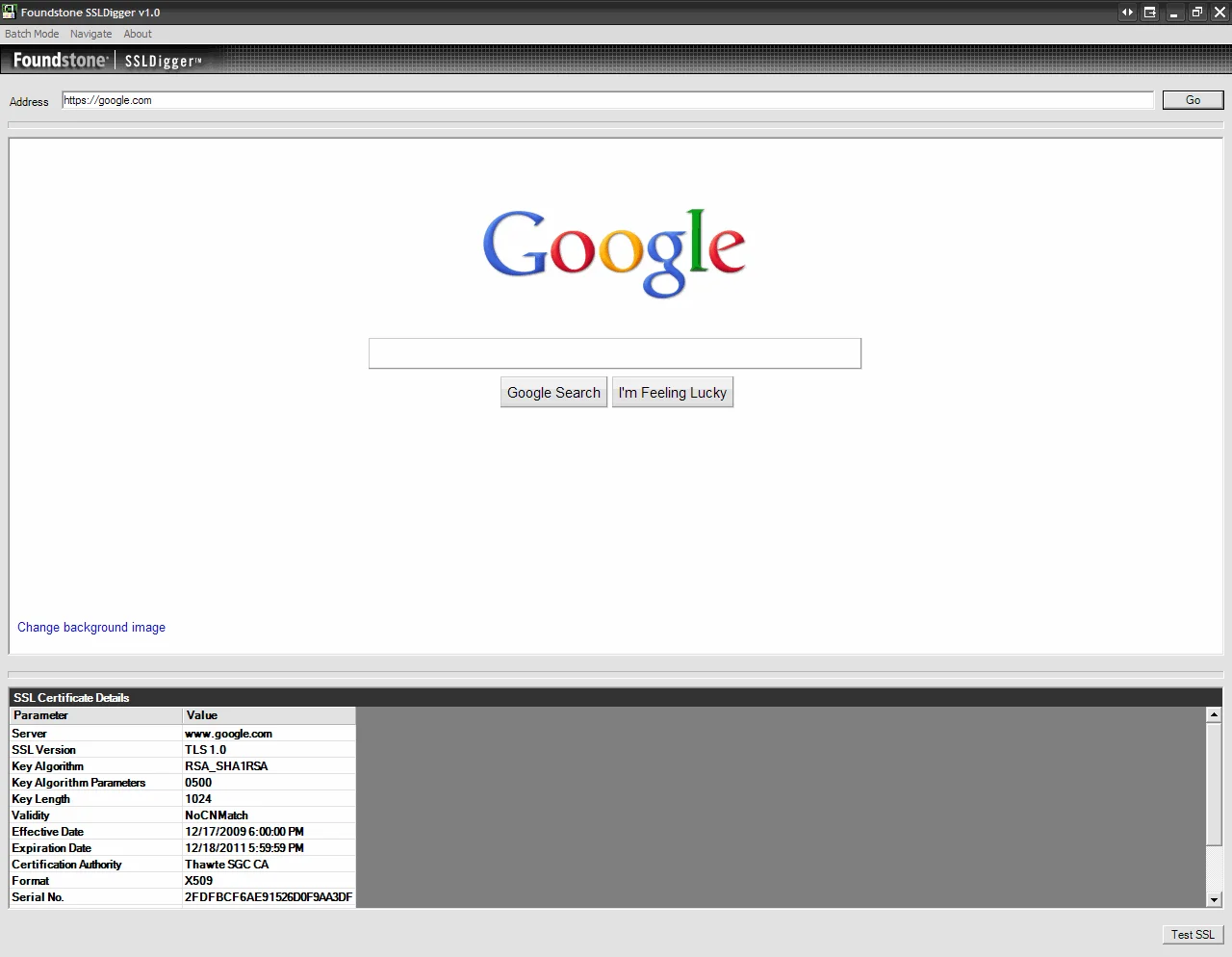
1. SSLDigger - Download it here http://www.foundstone.com/us/resources/proddesc/ssldigger.htm. It’s a great little tool that first tests for SSLv2, then gives you the option to test for weak ciphers one by one, then spits our a nice little HTML report of the findings. You can even create a .txt file with all your URLs to test and perform testing in bulk. This is wonderful when you have many domains to test and need to give a report to management quickly.

Checking the Google.com SSL cert (click to enlarge):

Checking for weak ciphers systematically (click to enlarge):

HTML report (click to enlarge):

2. OpenSSL – The old favorite. Type the following to connect to your web server or appliance over SSLv2:

openssl s_client -connect www.yourdomain.com:443 -ssl2

It should connect giving you a CONNECTED(000007C0) message but then immediately fail and display an error message like one of the following:

419:error:1407F0E5:SSL routines:SSL2_WRITE:ssl handshake failure:s2_pkt.c:428:
420:error:1406D0B8:SSL routines:GET_SERVER_HELLO:no cipher list:s2_clnt.c:450:
10076:error:1407F0E5:SSL routines:SSL2_WRITE:ssl handshake failure:. \ssl\s2_pkt.c:428:
write:errno=548965:error:1407F0E5:SSL routines:SSL2_WRITE:ssl handshake failure:s2_pkt.c:428:
write:errno=10054

SSL handshake failures and connection resets (errno=10054) are completely normal if SSLv2 is disabled. The specific error message you get will depend on exactly what behavior your web server or appliance is configured to do when a client connects using it.

Example of SSLv2 disabled:

Example of SSLv2 enabled (VERY VERY BAD!):

3. Nessus – Download it here http://www.nessus.org and use the Home Feed and setup a new scan using the SSL Anonymous Cipher Suites Supported and SSL Version 2 (v2) Protocol Detection plugins. Please make sure to disable all the other plugins, you don’t want all that hitting your server. Just these 2 are sufficient. Then check the Reports and see if it is reporting SSLv2 as a vulnerability.

4. External SSL checkers – Running nice little tools like the above three is nice to check your servers when you are internal but if you want to see what 3rd parties are seeing externally, use one of these online SSL checkers to test:

http://foundeo.com/products/iis-weak-ssl-ciphers/test.cfm
http://www.dnsstuff.com/tools/

How to convert an SSL cert to a .pem for installation on Citrix and Cisco appliances

January 7th, 2010 1 comment

Often times you might have to add an SSL cert to a Cisco or Citrix appliance (like a Netscaler) but it only accepts the SSL cert and private key in a certain format.  Your CA (certificate authority) will issue the SSL cert to you as a .crt.  From there, you need to package the cert with the private key and in the format your appliance requires.  There are different ways to do this and one easy way I like is using IIS and OpenSSL which is a free open source tool and can be downloaded here:  http://www.openssl.org

1. Create a temporary site in IIS and generate a CSR.  Make sure the CN (common name) you enter matches whatever appliance you are trying to generate it for exmp:  wireless.mycompany.com

2.  Submit the CSR to your CA such as Verisign, GoDaddy, Network Solutions, etc. and wait for them to validate and issue your cert.

3. Get the .crt from the CA once they issue it and convert it to .cer.  Just open the .crt by double clicking on it and and save it as .cer using the export wizard.  This is necessary since IIS does not accept .crt.


4. Install the .cer in IIS using the Web Server Certificate Wizard where you originally generated the CSR.  Just process the pending request to install it.

5. View the cert in IIS and export it with the private key in pkcs12 (.pfx) format.  Just set the password as “password” since you will be deleting it after conversion is complete later.

6. Go to the directory where OpenSSL.exe is and type in the following to convert the .pfx to a .pem

openssl pkcs12 -in nameofcert.pfx -out nameofcert.pem

7. Type the “password” when prompted for the pass phrase.

8. Install the .pem on the appliance and it should work

IMPORTANT NOTE:

If you are doing it for some appliances like a Cisco IronPort, you need to add the nodes switch when creating the .pem:

openssl pkcs12 -in nameofcert.pfx -out nameofcert.pem –nodes

The –nodes switch ensures that the key inside the .pem is left unencrypted.  If you attempt to install a .pem created without the -nodes switch, the appliance will take the cert but will not accept the private key since it cannot read it in an encrypted state.

SSL certificate chains explained

March 12th, 2009 No comments

Today I would like to clear up some confusion about SSL Chained Certificates. For this example, I will use Network Solutions as the Certificate Authority (CA) you are buying the cert from. This is information you will have to know when you purchase a new SSL cert or renew an existing SSL cert for your Exchange server, IIS web server, or any other external facing server or appliance.

Network Solutions does not issue you a single cert. They issue you an SSL chained cert. So for example, if you are buying a cert for:

widgets.com

They will validate and issue you the cert, but when you download and open the zip file from their website, you will see the following certificate bundle:

AddTrustExternalCARoot.crt
NetworkSolutions_CA.crt
WIDGETS.COM.crt
UTNAddTrustServer_CA.crt

Let’s analyze these certs in your chain. The first one is AddTrustExternalCARoot.crt which is called the “root certificate”. This is the first cert in your chain. This root cert is installed to the Trusted Root Certification Authorities store on your server or network appliance.

The second cert in your chain is NetworkSolutions_CA.crt and the UTNAddTrustServer_CA.crt which are “intermediate certificates”. An intermediate cert is essentially a certificate issued by the Trusted Root CA specifically designed to issue SSL Certificates to you. The reason for this is because if the CA root cert were to ever be compromised, the entire chain fails. It is good security practice to use an “intermediary” to issue the certs from to prevent your root CAs from being exposed from the signing process. If an intermediate were to ever be compromised, you can always regenerate those unlike the root certs. This intermediate certificate sits between your website cert and the root cert. This intermediate cert is installed to the Intermediate Certification Authorities store on your server or appliance.

The last cert in your chain is WIDGETS.COM.crt which is your actual SSL cert. This is also known as your “domain certificate”. This domain cert is installed to the Personal store on your server or appliance.

So the end result is chain of certs that begins at the trusted root CA, runs through the intermediary, and finally ends with the SSL certificate issued to you for your website or appliance (widgets.com).

In most cases, any sever or appliance out there will already have the trusted root cert for Network Solutions installed. You can just install your SSL cert and not have to worry about anything else in most cases. Depending on where you buy your cert from and what you are trying to install your cert to, you may have to go through the steps of installing the Trusted Root cert and Intermediate cert first before installing your SSL cert. With some web browsers like Internet Explorer 7 for example, you can get away with not having to install any Intermediate Certificate because IE7 will automatically go out automatically download the intermediate cert the first time a user visits your website. This makes things easy for the lazy admin but it’s always best practice to go a head and add the Intermediate cert on your end instead of depending on the client and their browser’s ability to do this. There is no point in risking a certificate error for the end user when the fix is so easy.

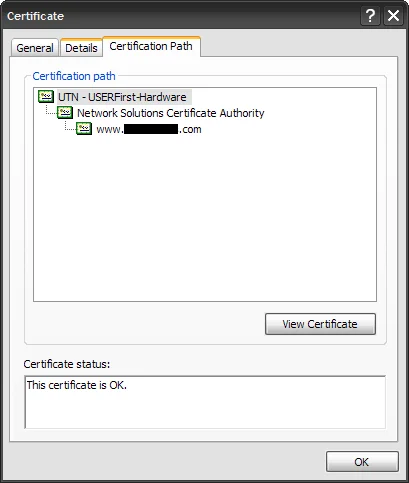
To verify the chain, go to any site you know that uses SSL (https://) and then click on the lock in Internet Explorer, it will let you view the SSL cert info. Click the “Certificate Path” tab and you can see the chain we described above:

Trusted Root —> Intermediate —> SSL Certificate

sslcertpath
You can then click on each one of these certs and hit the “View Cert” button to view each cert in the chain individually. Good luck and post a comment if you have any questions. :)