Archive

Posts Tagged ‘SQL’

Getting admin access on a SQL Server when you don’t know the SA account password

August 9th, 2011 4 comments

I was on an inherited SQL box this morning and didn’t know the SA account credentials. There was another admin service account but I didn’t have credentials for that either and unfortunately I wasn’t given any documentation on it. At first I was thinking through ways to go about resetting the SA account but then I remembered a trick to use your Windows local administrator credentials to override the SQL login and create an admin account for yourself. This ensures you don’t break anything by resetting an existing account. As long as you are logged into the server as a local administrator, this will work in a pinch.

1. Go to:

Start > Programs > Microsoft SQL Server 2005 > Configuration Tools > SQL Server Configuration Manager

2. Right click on the SQL server you want to add an account for and click Stop.

3. Once it has stopped, right click on it and open Properties. Go to the Advanced tab.

4. Under “Startup Parameters”, copy and paste that whole string to Notepad as a backup. Go back to the box and add the following right at the end of the string:

;–m

It should look like this:

Press OK when done. What this does is forces SQL to start in single user mode.

5. Now right click the SQL server you had stopped before and start it.

6. Now if you go to SQL Management Studio, it will error out. The only way to get into it is using sqlcmd. So open a command prompt and type:

sqlcmd

which should give you a “1>” prompt denoting line 1. If it gives you an error saying “Login failed for user ‘xxxxx’. Reason: Server is in single user mode. Only one administrator can connect at this time. (Microsoft SQL Server, Error: 18461″, make sure all management consoles are closed and there are no other users logged in using it. Also go to your Windows services and stop all the following services:

SQL Server Agent
SQL Server FullText Search
SQL Server Integration Services
SQL Server Reporting Services
SQL Server VSS Writer

Only SQL Server and SQL Browser should be running. Try “sqlcmd” at the command prompt and it should let you through.

7. Now type the following to add your domain user account with admin privileges:

EXEC sp_addsrvrolemember 'domain\useraccount', 'sysadmin';
GO

it should give you blank line if it was successful.

8. Now go back into the SQL Server Configuration Manager and remove the “;–m” you had placed under Startup Parameters. Restart the SQL server again.

9. Now hit SQL Management studio and login using the account you have created using Windows Authentication. You should have full admin privileges to create additional accounts, reset the SA account, change server roles, change user mapping, etc.

Hope this helps. :)

Using Log Parser to query huge log files and only display the results you need

January 12th, 2010 1 comment

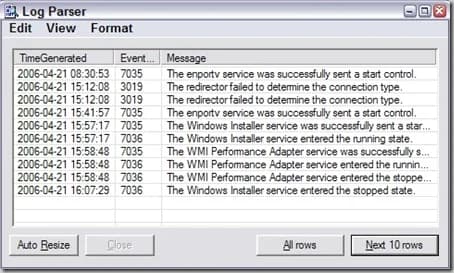
Have you ever had a giant log file or CSV that you needed to go through and pull results from quickly?  Sure you can try dumping it into Excel and trying different filters and sort orders but that’s a waste of time.  It’s much faster to pull your data via a query like in a database.  Microsoft has a tool called Log Parser that does just that.  You can use queries to parse any kind of text based file.

You can download Log Parser 2.2 from Microsoft here:  http://www.microsoft.com/downloads/details.aspx?FamilyID=890cd06b-abf8-4c25-91b2-f8d975cf8c07&displaylang=en

Just install it and try it out by opening up a command prompt, navigating to your install path, and running the logparser executable.  It will display a list of commands to get you familiar with it.   I first started using it to parse huge IIS logs.  It’s pretty easy to use, here’s an example of pulling the top 10 pages hit on your site:

logparser "SELECT TOP 10 cs-uri-stem as Url, COUNT(cs-uri-stem) AS Hits FROM c:\logs\ex*.log GROUP BY cs-uri-stem ORDER BY Hits DESC"

or all the Error 500s for a particular site:

logparser "SELECT [cs-uri-stem], [cs-uri-query], Count(*) AS [Hits] FROM c:\logs\ex*.log WHERE sc-status = 500 GROUP BY [cs-uri-stem], [cs-uri-query] order by [hits], [cs-uri-stem] DESC" -rtp:-1 -i:iisw3c

You can even throw the above in a batch file that schedule to run every hour and do something like:

All5005Errors.bat > All500Errors.txt

to log it all to disk.  Or even easier, use INTO in your SQL syntax to dump to a file like a .csv so it reads like:

logparser "SELECT [cs-uri-stem], [cs-uri-query], Count(*) AS [Hits] INTO All500Errors.csv FROM c:\logs\ex*.log WHERE sc-status = 500 GROUP BY [cs-uri-stem], [cs-uri-query] order by [hits], [cs-uri-stem] DESC" -rtp:-1 -i:iisw3c

There’s tons and tons of nice little queries people have written, for example I’ve personally used some from Jeff Atwood’s site here:  http://www.codinghorror.com/blog/archives/000369.html

Or you can got to the IIS.NET forums where there is an entire forum and many sub-forums dedicated to Log Parser here:  http://forums.iis.net/default.aspx?GroupID=51

Another cool tool over at CodePlex…Visual Log Parser:  http://www.codeplex.com/visuallogparser

I actually haven’t used this yet but it is out there if you get bored of using command line.  LMK if you guys decide to try it out.