Archive

Posts Tagged ‘SharePoint 2007’

Opening Sharepoint documents in a Windows 7 XenDesktop session using XenApp published Office products with content redirection

March 26th, 2013 2 comments

Wow, long title there! Just like it says, I’m going to cover opening Sharepoint documents in a Windows 7 XenDesktop VDI session using XenApp published Office products with content redirection enabled. Here’s an example scenario:

  • Your company uses Sharepoint and the URL is http:\\sharepoint.domain.com. It is part of the Local Intranet zone in IE.
  • Your users are using Windows 7 VDI/XenDesktop VMs with Citrix Receiver Enterprise pulling published apps into the Start menu.
  • You have Office 2010 products (Word 2010, Excel 2010, Visio 2010, etc) published via XenApp with content redirection enabled so .docx, .xlsx, .vsd files launched in the VDI session will open using the published Office app.
  • Your users want to click on a Word, Excel, Visio, etc. document in a Sharepoint document library and click the Edit button to edit the document instead of just Read Only. They expect the published Office app to launch and allow them to edit the document.

THE PROBLEMS
In this scenario, when the user clicks on let’s say a Visio document in Sharepoint, the published app will launch but the document will not be sucked in. You’ll get a “File not found” error and if you look closely, the URL begins with “\\” as if it’s a UNC path instead of an HTTP path:

2

If you click OK, Visio will open but no diagram will open.

If you right click, Save As the Visio diagram to your C: drive and attempt to open it locally, it will launch the published Visio instance but will give you the following “File not found” error:

1

Again, look closely. It says “\\Client\” instead of your VM’s name.

THE FIXES
Well, really it’s 1 fix and 1 workaround for now. Let’s start with the fix first. We’re going to get local files and files residing on network shares launching right using the published app. I’m going to use Visio and a .vsd file again as the example:

1. On the Windows 7 VM, you must enabled Native Drive Mapping to be able to launch the .vsd file via published Visio. You can follow the CTX article here to make the registry change:

http://support.citrix.com/article/CTX130378

or you can enforce it via group policy. One thing though, on Windows 7 x64 the path is:

HKEY_LOCAL_MACHINE\SOFTWARE\Wow6432Node\Citrix\ICA Client\Engine\Configuration\
Advanced\Modules\ClientDrive

NativeDriveMapping
Reg Type: REG_SZ
Add the Value: True

Once the value is set to TRUE, try launching the .vsd file you saved to your hard drive or on a network share. It will launch immediately. Then go to File – Save As in Visio and checkout the path bar. It will say “\\Client\C$\Users\xxxx\”. So now your system recognizes the word “Client”.

3

This is because you’re going through 2 virtualization layers. Citrix has an excellent article detailing how Client drives are passed through multiple sessions here:
http://support.citrix.com/article/CTX127872

You can also read more about the NativeDriveMapping key here:
http://support.citrix.com/article/CTX124389

Additionally here is a really good CTX article from Citrix that covers Client Drive Mapping troubleshooting that might be helpful to you:
http://support.citrix.com/article/CTX238200

And some info describing differences in Client drive mapping between the different versions of XenApp and Presentation Server here:
http://support.citrix.com/article/CTX127614

2. Now back to Visio diagrams in Sharepoint. First you need to verify content redirection is behaving correctly. In my case, I needed to make sure to change the published app location to include the “%**” switch. By default when you enable content direction, it will be:

"D:\Program Files (x86)\Microsoft Office\Office14\VISIO.EXE" "%*"

with just one asterisk. You need to add two so it looks like this:

"D:\Program Files (x86)\Microsoft Office\Office14\VISIO.EXE" "%**"

The reason for this is documented in this CTX article:

http://support.citrix.com/article/CTX116887

This was written for Presentation Server 4.5 but it still applies to XenApp 6.5 just fine.

Once you get content redirection squared away on your XenApp server, things will still not work correctly unfortunately when opening docs in Sharepoint in your XenDesktop session. You can try right clicking and editing but you will still get the File not found error. This error has nothing to do with Client Drive Mapping. Being a Sharepoint Architect in a previous role long ago, my gut feeling was this is a WebDAV issue. Remember, Sharepoint uses WebDAV with document libraries though to the casual observer it might appear to be a UNC file share path. My gut was telling me Receiver was not handling WebDav paths correctly and was treating them like regular SMB file share paths. No proof this is the culprit just yet, only a hunch.

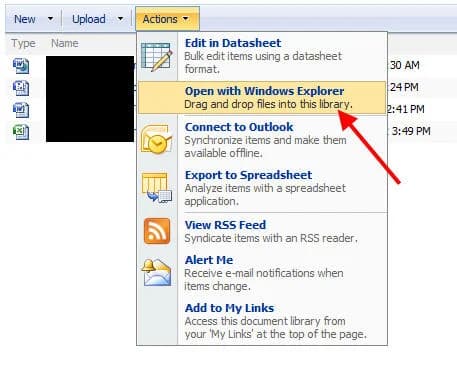
Let’s run an experiment. In your Sharepoint document library, click Actions > Open with Windows Explorer:

4

You’ll notice the path bar says “http://sharepoint.domain.com” when you open it here:

5

Go ahead and launch the Visio diagram in this document library. When you try and launch it, it will launch published Visio and give you the same File not Found error as before. In some scenarios even an Access Denied error though it never actually was able to find the file. Again, it is looking for “\\sharepoint.domain.com” instead of using WebDAV (or the DavWWWRoot keyword) which should be parsed like the HTTP protocol “http:\\sharepoint.domain.com”. Sharepoint Content Redirection is never going to work because Citrix Receiver doesn’t know how to get there. One work around is to tell your users to save locally, edit, then upload. But this is annoying and most users will complain.

I started thinking Mini Redirector (which is Microsoft’s WebDav client and part of the Windows 7 OS) was trying to hand-off the DavWWWRoot keyword in the URL to Receiver and Receiver didn’t know what to do with it. Looking at the URL though it didn’t even seem to be passing it through. It was as if it was passing a straight UNC path. Or maybe is was not talking to owssupp.dll which is required to interact with and edit docs in Sharepoint. Maybe somehow it wasn’t handing off through Receiver properly. Now I was really starting to go down the rabbit hole and before I dug further, I figured I’d give Citrix Support a call and see if they had any input.

I was able to talk to a XenApp support technician and a XenApp Developer who were both very knowledgeable. I explained my WebDav theory and we ran a little experiment. We ran Process Monitor from my Windows 7 workstation and attempted to edit a simple Word document in Sharepoint. The published version of Word launched as expected and failed to find the file. Here is the URL that was passed to the PNAgent when we used the Process Tree display:

6

You can see that it passed:

\\Client\\\sharepoint.domain.com\link\to\doc\repository\test jason.docx"

Looks a bit odd, doesn’t it? No wonder it can’t find the file.

Then we went to the XenApp server with Word 2010 installed locally, opened Internet Explorer, and navigated to the Sharepoint document library. When I clicked Edit on the Word document this time, this is what was passed to the locally installed Word:

7

And of course the Word document successfully launched. You can see it passed a nicely formatted HTTP URL:

http://sharepoint.domain.com/link/to/doc/repository/test%20jason.docx"

The XenApp Developer verified this was actually a bug and needed to be fixed. It may or may not be WebDav related, but he confirmed there is definitely a disconnect at the Content Redirection level via Sharepoint as I had suspected. It has been added to their bug queue to get taken care of.

In the mean time, his suggestion is to publish Sharepoint itself on the same server Office 2010 products are installed on (publish IE passing the Sharepoint URL during launch). This is a good workaround but may annoy a few users. I always hate publishing IE because of the stuff you have to do to lock down/harden the browser. People can get confused and start browsing to Youtube or other process intensive websites using this published instance of IE if you don’t completely lock down the allowed URLs. This can cause a severe impact on XenApp performance for all users on the box. If I limit tabs, then people start complaining they can’t open additional tabs and the helpdesk gets flooded with phone calls. So just keep that in mind if you use this workaround.

Another work around I found online is by Anthony Obi:

http://community.obilogic.co.uk/blogs/teamblog/archive/2011/10/25/sharepoint-2010-edit-document-via-citrix-xenapp.aspx

He has an issue where owssupp.dll was not being detected on the client system (because it wasn’t there) and added an extra menu item in his Sharepoint deployment to edit documents as a work around. He modified the new Edit action to launch some Javascript that talks to PNAgent.exe that then talks to the published Office instance and passes the correct URL. This might work as well for you but of course it requires a modification of your Sharepoint environment and end user training.

I will post here as I get updates from Citrix Support on this issue. It’s a fairly unique scenario but definitely not uncommon in the real world as application delivery and desktop virtualization continue to be separated through multiple layers.

How to edit Word and Excel documents in Sharepoint 2007 using Firefox

April 8th, 2010 2 comments

Yes, we all know how much of a pain it can be when you want to edit an Excel or Word document in Firefox but it opens up in Read Only mode.  With IE 8 and Office 2007, you would get a popup like this asking what you want to do when you left click on a document:

but in Firefox, you only get to download the document.  No option to edit it like this:

The quick solution I found that works for me is to install a couple of plugins for Firefox.  There are 2 ways to get around this:

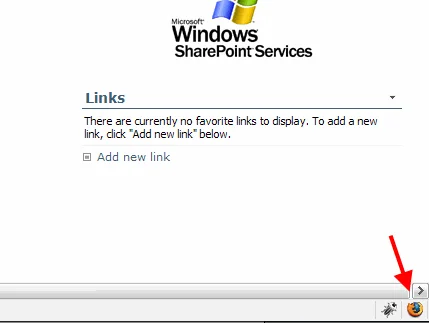
1. Install the Coral IE Tab pluginhttps://addons.mozilla.org/en-US/firefox/addon/10909- This allows you to switch whatever page you are looking at into a page rendered by IE but you are still in your Firefox tab.  You can also right click on your page in Firefox and open it in a new tab using IE so you have both versions.  Just use the “Switch Rendering Engine” option.  You can also have it actually open up in IE as well in a brand new IE window.  I PREFER CORAL IE over any other plugin because look how easy it is to change your rendering engine.  Just click the icon in the bottom right and your page is displayed in that browser . :)

Firefox + Sharepoint:

IE being rendered in Firefox + Sharepoint:

2. Install the IE View Lite pluginhttps://addons.mozilla.org/en-US/firefox/addon/1429 – This allows you to to right click on a page and quickly load the page up in a new IE window.  Kind of like Coral IE but a “lite” version of it that only allows opening up a secondary window.

I know, not the easiest solution but it works for now until I find a better way.  MS treats Firefox like a second class browser with no AJAX or rich text editing for some reason.  All this will change with Sharepoint 2010 but for the great majority of the world that will remain on Sharepoint 2007 for a while, we have to come up with workarounds.  Looking forward to May 12th, 2010 when it’s officially released along with Office 2010. :)

You’ll notice a lot of nice little features you are used to in IE missing when browsing your Sharepoint site with Firefox because of this.  One thing I miss but haven’t looked into is getting the “Open with Windows Explorer” action back.  This “Explorer View” uses WebDav (http://en.wikipedia.org/wiki/WebDAV) to open a connection straight to your Sharepoint document library in a familiar Windows Explorer interface making it easy for end users to upload, move, rename, etc. in bulk. I am heavily dependent on this feature myself.  I’m thinking Firefox has to have some kind of WebDav plugin installed to get this working.  I’ll look into it and post here if I find something.

One thing to note, and I haven’t tried it yet, is that some guys over at Codplex are working on some basic Sharepoint 2007 + Firefox integration here:

http://wssfirefox.codeplex.com

The only reason I haven’t tried it out is because of the server side components that need to be installed.  I need to get around to trying it on one of my test farms at some point.  Most enterprises are not going to support Firefox anyhow so it’s not a priority issue to get resolved for me.  More of a personal challenge. :)

How to find out what build version of SharePoint you are running

November 12th, 2009 No comments

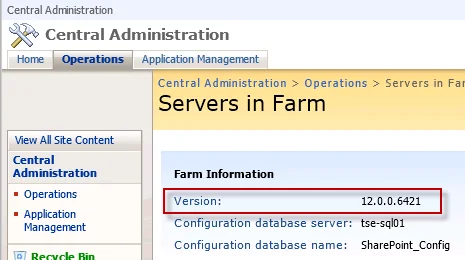
When you’re applying updates to a large farm, you really need to check the version number of SharePoint running on each server in the farm in order to maintain consistency.  You can do this easily by going to CA > Operations > Servers in Farm.

But what do these version numbers actually mean?  There’s a great Wiki maintained here that can answer this:

http://www.sharepointdevwiki.com/display/SharePointAdministrationWiki/SharePoint+Versions

This page will show you all the past and current version numbers and their associated KB articles.  Very handy when troubleshooting updates or if you want to check the change log between versions.

Categories: SharePoint 2007 Tags:

How do you get SharePoint 2007 to read and index content inside a PDF file?

September 15th, 2009 No comments

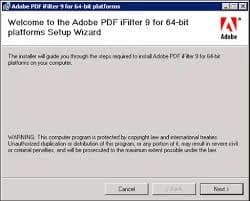
This is an easy one but requires a little bit of work to get working correctly.  SharePoint uses a feature called Index Server to search documents but it doesn’t search within PDFs by default. Searching inside PDF documents requires an iFilter from Adobe which they designed for 3rd party systems to read the PDF file format. Adobe includes this filter with Adobe Reader or you can download iFilter separately from Adobe’s site if you don’t want Reader installed on your SharePoint servers. 

http://www.adobe.com/products/reader – Latest version of Adobe Reader

or

http://www.adobe.com/support/downloads/detail.jsp?ftpID=2611 – x86 iFilter
http://www.adobe.com/support/downloads/detail.jsp?ftpID=4025 – x64 iFilter

 
CENTRAL ADMINISTRATION
Now in SharePoint itself, you need to configure the search service to index files with the .pdf extension:

1. Go to CA and open up the Shared Service under Shared Services Administration.
2. Click Search Administration under the Search section.
3. Click File Types in the left nav bar and then click New File Type.
4. Enter “pdf” and click OK.

ICONS
You will also want to display the PDF icon next to PDF Documents in SharePoint.  You can download the icon from here:

http://www.adobe.com/images/pdficon_small.gif

and copy it into the 12 hive folder here:

C:\Program Files\Common Files\Microsoft Shared\Web Server Extensions\12\TEMPLATE\IMAGES

Then open up this XML template file:

C:\Program Files\Common Files\Microsoft Shared\Web Server Extensions \12 \TEMPLATE\XML\DOCICON.XML

and add the this line in the <DocIcons.ByExtension> section if it isn’t there already:

REGISTRY
Now on to the registry changes you need to make on each index server.  Make sure to backup your registry before making any changes.  These two changes will register the Adobe PDF iFilter with the Office Search service.  The values that need to be changed are:

HKEY_LOCAL_MACHINE\SOFTWARE\Microsoft\Office Server\12.0\Search\Setup\ContentIndexCommon\Filters\Extension\.pdf

HKEY_LOCAL_MACHINE\SOFTWARE\Microsoft\Shared Tools\Web Server Extensions\12.0\Search\Setup\ContentIndexCommon\Filters\Extension\.pdf

Both values should be changed to:

{E8978DA6-047F-4E3D-9C78-CDBE46041603}

Then go to:

HKEY_LOCAL_MACHINE\SOFTWARE\Microsoft\Shared Tools\Web Server Extensions\12.0\Search\Applications\{Random GUID}\Gather\Search\Extensions\ExtensionList

and add “pdf” to this list. You will have to create a new String Value for this. Just number it the next number in the list, should be 38 on most Sharepoint installs.

SYSTEM PATH
Now you need to add the Adobe install directory to the System Path environmental variable so that the search service can find the dll which provides the iFilter service:

1. Right click My Computer
2. Click Properties
3. Click Advanced
4. Click Environment Variables
5. In the bottom half of the window, find the Path variable and double click it.
6. At the end of the value, add:

;C:\Program Files\Adobe\Reader 9.0\Reader

RESTART SEARCH SERVICES
Now you need to restart the Office Search service so that all changes are reflected. Open up cmd prompt and type

sc stop osearch [press enter]
sc start osearch [press enter]

Or just restart it via the Services MMC.

If you already have PDF documents in SharePoint that you want to search inside, you have to ”Reset all crawled content” in Search Settings and then begin a new ”Full Crawl” under Content Sources.

UPDATE 9/20/2010: Installing SP2 or cumulative updates to your Sharepoint farm may sometimes reset your registry changes. Specifically your {E8978DA6-047F-4E3D-9C78-CDBE46041603} registry key will be reset to the old {4C904448-74A9-11D0-AF6E-00C04FD8DC02} value or it might include both keys. This will cause your PDF indexing to stop. Just edit the registry values above and put the correct value back in, restart search services & IIS, then run a full crawl. Your PDFs will begin indexing correctly again.

My favorite 3rd party Sharepoint 2007 add-ons

September 5th, 2009 No comments

Anyone that builds SharePoint environments knows CodePlex (Microsoft’s Open Source Project Community) is the biggest hub for free SharePoint solutions.  I’m always looking for add-ons to play with in my SharePoint farms.  Here are a few that I find very useful.  MAKE SURE to test them out in a test farm before deploying to a production environment!!!  Every company’s SharePoint farm is unique so you must make sure a 3rd party add-on doesn’t break functionality for existing or custom webparts or create security issues before deploying to a live farm:

1. SharePoint Learning Kit (SLK)http://slk.codeplex.com/ - Used as an e-learning and delivery system.  Think of it as a student teacher portal.  A lot of school districts like this one and it has a huge following. 

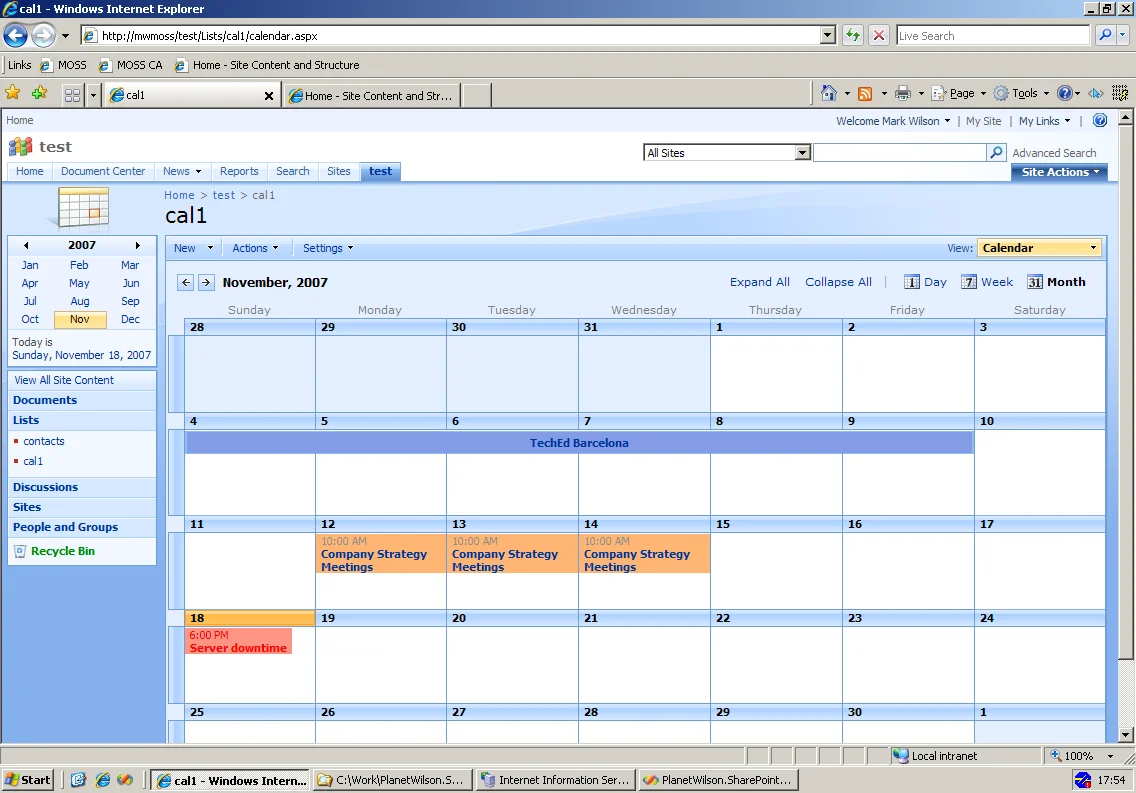
2. PlanetWilson Color Calendarhttp://planetwilson.codeplex.com/ - Gives you the ability to color code Sharepoint calendar entries.  Immensely popular with users!  Once you install it, you’ll wonder how you ever used a Sharepoint calendar without it.  Big kudos to Mark Wilson for developing this project!

3. Smart Tools for Sharepointhttp://smarttools.codeplex.com/ - A ton of nice little tools that will make your life as an admin or user easier.

4. ChartParthttp://chartpart.codeplex.com/ - Generate graphs from Sharepoint lists.  A lot of users request this feature so give it a shot.  There are other alternatives out there too that I have tried but ChartPart has been prettty popular with my end users.

5. SharePoint Access Checker Webparthttp://accesschecker.codeplex.com/- Allows site owners to check access for users within their site.  Helps keep requests to Sharepoint farm admins down when site owners can easily check their security settings.  It can also check permission inheritance.

6. SPWakeuphttp://spwakeup.codeplex.com/ - I had previously made a blog entry about this.  It allows you to “warm up” your Sharepoint farms so the first users of the day don’t have to wait for your app pools to spin up and your IIS cache to be rebuilt.

These are just a few I find very useful.  Hope they help you out! :)