Archive

Posts Tagged ‘sfc check’

Double checking your system after recovering from a corrupted OS

April 9th, 2010 Jason Samuel No comments

Disasters happen and with a bit of skill and some luck, you might be able to get back into your operating system.  But you might notice a bunch of things out of place or missing if you had to do a Windows repair or use the Recovery Console to set things back to factory settings.

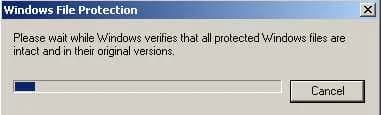
One of the tools I like to use is System File Checker (sfc.exe) which compares your file system against the original install disk and replaces missing or corrupt system files as needed.  Just go to a command prompt and type:

sfc /scannow

and Windows File Protection will begin scanning all your protected system files immediately.  If you get a prompt asking you to insert a disk, just cancel out and edit your registry key here:

HKEY_LOCAL_MACHINE\SOFTWARE\Microsoft\Windows\CurrentVersion\Setup

and verify SourcePath is set to your CD-ROM drive with your install CD in it.  You’ll have to reboot to make sure the changes take effect.  Also you might want to verify:

HKEY_LOCAL_MACHINE\SOFTWARE\Microsoft\Windows\CurrentVersion\Setup\ServicePackSourcePath

is set to C:\WINDOWS\ServicePackFiles just so your service packs you have installed after installing the original OS are taken into account and not overwritten by older versions.