Archive

Posts Tagged ‘citrix xenserver’

XenCenter causing a SYN flood on port 3389 in a PVS environment

November 9th, 2012 No comments

Had an interesting morning. Our network team discovered my workstation was making around 6000 requests an hour on RDP port 3389 through our internal firewall to an unroutable network reserved in our server subnet. Basically a SYN flood (DOS/Denial of Service attack) was being executed internally from my workstation. I know my machine is clean and the only thing I had open was XenCenter. It had been running for about a week now, that was the last time I rebooted my workstation. So time to put on the detective hat and figure this one out.

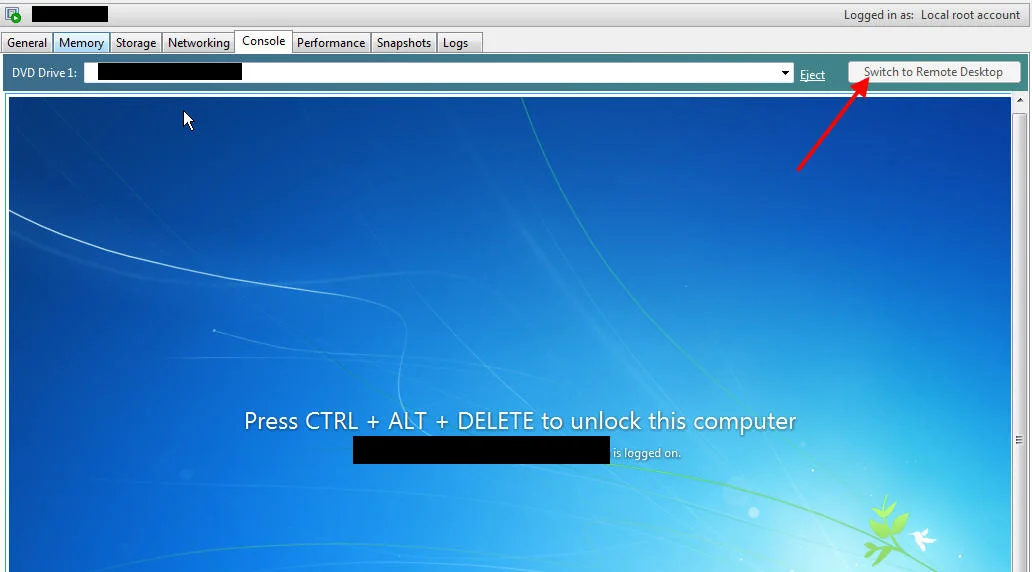
While using TCPView to do a live netstat, I discovered that XenCenter by default will always establish a connection via RDP when you click the Console tab. It tests to see if RDP is available on the VM and then ungreys that “Switch to Remote Desktop” option. Even if you are using a console session, XenCenter wants to see if RDP is an available option to you. You know that little flash of the console you usually see after hitting the Console tab? That’s the XenCenter console checking for RDP and “connecting” to the VM transparently to verify RDP is available. Not so transparent and actually annoying but I never thought too much about it.

SYN_SENT on 3389:

Established connection:

Terminating connection:

The problem is in a PVS environment, you usually have your network split between a streaming traffic NIC and a regular traffic NIC. The streaming traffic NIC is supposed to be the first NIC/device. So Device 0. It will look something like this on all your VMs:

Where the first streaming NIC is only routable within the Blade enclosure or server subnet and the secondary NIC routable and used for regular network traffic.

Well the problem is that when you click the Console tab on one of these VMs, XenCenter will send a SYN request to what IP is at Device 0. So in our case, an unroutable IP in the server subnet.

Not a problem right? Well it never stops. It continuously sends the SYN requests attempting to connect. Even if you click off the Console tab or go to another VM, it continues to try RDP on that IP. Our firewall separating workstation and server subnets was getting hammered. You can verify because your Console will have the “Switch to Remote Desktop” option greyed out during this whole process.

and TCPView will show all those little red SYN_Sent attempts. After a few days of leaving XenCenter up and clicking from console to console, the amount of traffic hitting your firewall will be tremendous. It will look like a SYN flood attack. If you have an IPS or IDPS (Intrusion Prevention or Intrusion Detection & Prevention System), it might even shut down your port.

I called Citrix and submitted a ticket with their development team. I got a call back later and there is a work around. In XenCenter, go to Tools > Options > and click the Console option. Then uncheck “Enable Remote Desktop console scanning”:

When you uncheck this, it will also uncheck “Automatically switch to the Remote Desktop console when it becomes available”. This is fine:

After this you will notice the SYN flood will immediately stop and all your VMs will now have the “Switch to Remote Desktop” option ungreyed from the get go. If you click it, then it will attempt the RDP connection and you will see the SYN_Sent again:

In my opinion, Citrix should fix this but stopping the SYN requests after you click away from the Console tab. This is not an issue that will impact many people but if you are running a PVS environment and you have it setup using Citrix best practices with 2 NICs and the streaming NIC is not accessible from your workstation subnet, you will eventually run into this issue. The longer you keep XenCenter open, the worse it will get.

If I get any updates from Citrix on a fix, I will post here. For now the work around will work fine. You just won’t have the Remote Desktop automatic console scanning available for your regular environments anymore. Not really a big loss for me but it might be for you depending on your environment.

Citrix XenServer and StorageLink SSL cert error caused by expired SSL certificate

January 19th, 2012 12 comments

When you try to start a VM in XenServer that talks to a StorageLink Gateway server, you get:

1/19/2012 x:xx:xx PM Error: Starting VM 'xxxxxx' - Storage assignment failed
(SSL_ERROR_SSL error:14090086:SSL routines:SSL3_GET_SERVER_CERTIFICATE:certificate
verify failed)

in the XenCenter log. You can verify the SSL cert by opening up the following in a browser window and replacing the x’s below with your StorageLink server’s IP address:

https://xxx.xxx.xxx.xxx:21605

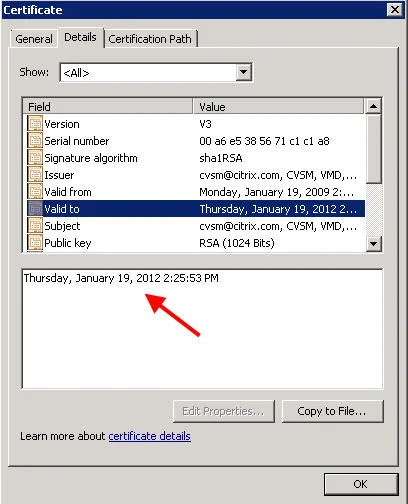
You will get a cert error message in your browser. Notice the Citrix CVSM SSL certificate issued on 1/19/2009 has expired today 1/19/2012 at 20:25:53 PM (GMT) which is 2:25 PM Central Standard Time. So basically any VM you try to turn on, reboot, or migrate after the cert expired will not work and return the SSL error above in the XenCenter log. Yeah, big problem.

I was the first to call in about this issue soon after the cert expired apparently. As I was on the phone troubleshooting this with the support engineer, others began calling in with the same problem. We have escalated it to the highest level at Citrix support and have been assured a workaround and a new cert are both being worked on and something should be available tomorrow morning. This is going to impact pretty much all StorageLink customers globally so trust me, they are working on it. Over the past several hours, I have tried numerous workarounds myself but been unable to get a full fix yet. I’ve tried self signed certs using OpenSSL, IIS & SelfSSL, etc. but to no avail so far. The StorageLink Gateway does not use a web server such as lighttpd, Apache, Tomcat, etc. either so I can’t force it to use another set of certs on that end. Apparently it uses API calls. When you restart the services, you will notice it copies the following SSL certs which are the culprits (into memory I’m guessing). I used Process Monitor to verify:

D:\Program Files (x86)\Citrix\StorageLink\Server\cacert.pem

D:\Program Files (x86)\Citrix\StorageLink\Server\server.pem

I actually did manage to get a little further than I thought on the handful of workarounds I tried, but nothing completely successful yet to regain functionality while we wait for a hotfix. If you want to try playing with the certs yourself, just remember to restart the StorageLink services after you swap out the certs each time so it pulls them in. XenCenter should see the SSL cert change and prompt you almost immediately with a warning message.

I will keep this post updated with the latest developments. Please post if you are having the same issue or come up with a temporary fix. In the meantime, call Citrix and open a case so you are in the loop when the fix is released.

UPDATE January, 24th, 2012 – Citrix has published the fix:

http://support.citrix.com/article/CTX131994

Apply the certs using the instructions in the KB. Shouldn’t take long at all.

Can’t console to frozen XenServer host but VMs are still running

December 13th, 2011 7 comments

Let’s say a host in your pool won’t restart a VM and freezes half way (that wonderful yellow icon). If you hit the console tab, it might be blank. If you hit the console tab of the host, it might also be blank. If you SSH in it may connect, but you can’t pass any xe commands. It just sits. If you attempt to migrate or stop a VM, it hangs. The host is essentially frozen but VMs are still running on it just fine.

This is all a pretty good sign the XAPI service on the host is hung up. XAPI is the XenServer management toolstack which pretty much controls everything on the XenServer host. If the “XenAPI” toolstack is hosed, XenCenter can’t talk to the host and you probably won’t be able to pass any xe commands. The Xen API is what controls everything at the host layer. Quick way to troubleshoot this:

1. SSH into the host with the issue.

2. Type:

df -h

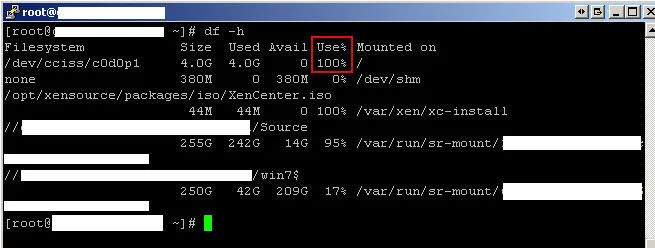
which will show the disk space usage on the file system. The “-h” switch will display it in gigabytes. Much easier to read. We need to check the root partition and see if it is full. This is typically 4 GB and can be filled up by logs which may cause the XAPI service to stop. If the XenServer root disk is full, you will probably see it drop out of XenCenter because XAPI is stopped. You won’t be able to restart the XAPI service until you free up some space. Here is an example of the root being 100% full:

Extra tip, once you log in to one XenServer host, you can check other hosts remotely without having to SSH into each one in a different terminal. Just type:

ssh <RemoteXenServerIPorName> df -h

3. If the root is full like above, type:

cd /var/log

then

ls

to list the logs. Type:

du –ksh *.*

to list the logs with the sizes. If you find one that is too big, delete it:

rm <logname>.log

From here you can skip ahead below to step 6 and try restarting XAPI.

Also, you might want to consider moving your logs off to a different volume. If you fill your dom0 root, you’re basically hosing the XenServer. Citrix has a good article on how to move the /var/log directory to a different volume here:

http://support.citrix.com/article/CTX130245

or retain fewer logs by editing logrotate.conf here:

http://support.citrix.com/article/CTX131619

4. If your root is not full, the next thing you probably want to do is disable HA. You can do this in the XenCenter console or you can just type:

xe pool-ha-disable

or if you want to disable HA on a host (you’ll have to run this on each host though):

host-emergency-ha-disable force=true

5. After disabling HA, restart the toolstack:

xe-toolstack-restart

This will disconnect all the hosts in the pool in XenCenter but don’t panic. Give it 10-20 seconds, once the toolstack is restarted the hosts will all reconnect to XenCenter. All pending actions like reboots, migrations, etc. will all stop when restarting the tool stack so you have a clean slate.

6. You should be able to console into your host with the issues now. Type:

service xapi status

and see if it is running. If you want to see how taxed XAPI is, type:

top

to see all the running processing. If XAPI is taking up 40% CPU or more, that is a good indication something is hung up on it.

If XAPI is not running or is very taxed, type:

service xapi restart

if it hangs at “Stopping xapi” or “Starting xapi”, you may need to kill the process.

Type:

kill <pid>

using the process ID from when you ran “service xapi status” or “top”. Then service xapi status to verify all xapi processes have stopped. Then you can type:

service xapi restart

again if it didn’t automatically try and start already. Eventually it will say:

Starting xapi: ....start-of-day complete.                  [  OK  ]

and you should see the host pop back in your XenCenter console. If you go back and run top, xapi should be taking up around 1% or less CPU.

You can type:

xe task-list

to see all the running tasks which shouldn’t be much at this point. Don’t forget to re-enable HA after you’re done. Hope this helps someone.