Archive

Archive for the ‘VMware View’ Category

Thoughts on Desktop Virtualization seminar with Brian Madden

November 18th, 2011 No comments

I was able to attend a Desktop Virtualization seminar by Brian Madden several weeks ago. It was a small group of attendees so it was great to interact at a personal level with him and some of the other speakers and get some questions answered. What I loved the most about this seminar was that a lot of the discussion was vendor agnostic, so I didn’t have a ton of marketing pushed at me. That’s a welcome change because I don’t want to hear sales talk, I want to hear the raw facts from other engineers on what works, what doesn’t, and why.

A lot of what was covered is stuff most everyone working with VDI may already know. I’m not going to transcribe all my notes from the seminar. But some key takeaways that I felt were important were the following:

1. VDI projects and hardware refreshes are driven by different factors than last year this time. April 8, 2014 (End of Support, patches, hotfixes, etc. for Windows XP) is looming and many IT departments are concentrating more on hardware/Windows 7 migrations than they are on VDI projects. Last year many companies were trying to do both since these projects usually go hand in hand. Many companies that are still doing POCs or extending their testing phases are now starting to feel a time crunch. Because of this, many companies are giving priority to the refreshes and letting the VDI projects become a secondary project. That’s not to say VDI is not important, it’s just that many companies need to prioritize resources and personnel and choosing to allocate these at the refreshes. It’s funny because this has been happening all around me and to friends at their companies but I didn’t fully realize how industry wide this shift of priorities was until Brian said it out loud. So the takeaway is, get your refreshes completed first if you don’t have enough resources to handle both. You DO NOT want to get caught in 2014 with any XP machines on your network or something seriously needs to be reevaluated at your company. And it may end up being your job if you don’t drive the initiative to get your refreshes done well ahead of this date.

2. With all the different types of desktop technologies out there now:

DATA CENTER BASED INFRASTRUCTURE
-Remote Desktop Session Host (Terminal Server)
-VDI (Citrix XenDesktop, VMware View, etc)

CLIENT BASED INFRASTRUCTURE
-Client VM – Hypervisor on baremetal client (Citrix XenClient, VMware View Local Mode, Virtual Computer NxTop, MokaFive, Virtual Bridges VERDE, etc)
-Client VM – Hypervisor on existing OS (VMware Workstation, Virtual PC, Fusion, Parallels, XP Mode, etc.)
-OS Streaming
-Traditional desktops

Companies are having a hard time trying to decide what is best for their users. One of the slides shown showed the enumeration of these technologies into the environment and I swear, it was like a pack of Skittles. There are so many directions to go and for many different reasons but you really have to factor everything or you are going to have end up with one of these Skittles environments over time. The biggest take away here is that there is no ONE solution that is the BEST. Your infrastructure might be a few of these. But don’t let it run away from you, plan it well from the get go. Pretty much common sense to anyone working with VDI already.

3. So my co-worker asked how do you plan your VDI environment? How do you know what is best? Brian recommended a couple of products that can help you:

-LakeSide Solutions VMP – pulls stats on your environment and spits out a report that tells you which users are good candidates for VDI vs. Terminal Server vs. staying on a traditional desktop.

http://www.lakesidesoftware.com/systrack_vmp.aspx

-Liquidware Labs – does a lot of the same and comes with 30 day trial

http://liquidwarelabs.com/products/stratuspherefit.asp

Another really good tool he suggested that was good for looking at the app compatibility and testing closer was App-DNA AppTitude. It does automated testing against 68,000 data points. They were acquired by Citrix just a couple of weeks ago:

http://www.app-dna.com/about-apptitude/automated-application-testing/

ChangeBase offers something similar and they were acquired by Quest just a few weeks ago:

http://www.changebase.com/

4. User workspace management. Let’s face it, any large VDI deployment across all the different infrastructure technologies above + across all the different OSes is going to be a nightmare if you don’t have some way of managing the user workspace. Brian talked about the concept of layering hardware, OS, application, and users. Not unfamiliar to anyone that has worked with VDI. He talked about 3rd parties like AppSense, RES, LiquidWare Labs, etc. vs. what’s being offered from Citrix, Microsoft, and VMware. I’m not going to go too much into this because I plan on writing an article about user workspace management and a comparison of the different options soon. But just know that this is a big point that will break or make your VDI project.

These were some of my main takeaways from the seminar without going into too much detail. There was a lot of information covered and I have to thank Brian & TechTarget for putting this on. Doesn’t matter if you’re just in the planning stages of your VDI project or if it’s been running great for years, I guarantee you will learn something new or what’s coming down the pipe in the VDI world at one of these seminars. You can sign up for one in your city here:

http://events.techtarget.com/desktopvirtualization/

Using Firefox in an environment with roaming profiles

August 2nd, 2011 1 comment

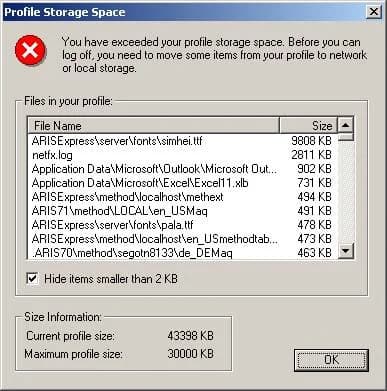
By default, Firefox stores it’s profile cache in "C:\Documents and Settings\yourusername\Application Data\Mozilla\Firefox\Profiles". This can be problematic when using roaming profiles with a limited amount of profile storage space due to quotas. As you add extensions, it grows even bigger. This is a big problem in XenApp/XenDesktop/View and other VDI environments using roaming profiles. You’ll soon start getting errors saying you are almost out of profile storage space or that you have exceeded your profile storage space. Something like this (note I just grabbed this screenshot from a Google Image Search, you would normally see a bunch of Mozilla Firefox related files in there eating up the space):

The solution is to move the profile out of the user folder and into another local folder or onto a network drive/home folder, thus reclaiming the profile storage space. For example, I created "c:\FireFoxProfile" to house the profile. Here is what you need to do to begin using this folder:

1. Edit "C:\Documents and Settings\yourusername\Application Data\Mozilla\Firefox\profiles.ini" in Notepad and change:

IsRelative=1

to

IsRelative=0

What this does is allow you to use an explicit path that you specify for the profile.

2. Change the next line from:

Path=Profiles/xxxxxxx.default

to

Path=c:\FireFoxProfile\xxxxxxx.default

3. Save profile.ini and restart Firefox. You will notice that immediately, the new profile folder is populated. Keep in mind when you open Firefox for the first time, it will be like a brand new install and you will lose all of your bookmarks, extensions, customizations, etc. unless you restore them from the old path.

4. You can delete everything in your old profile path once you have Firefox working in the new profile path. This will immediately reclaim your roaming profile storage space.

NOTE: If deploying to the entire corporation, there are other methods to centrally manage Firefox and control the deployment. This solution is good for the one off users though.