Archive

Archive for July, 2010

Getting around Netscaler Client IP issues without having to use USIP

July 16th, 2010 5 comments

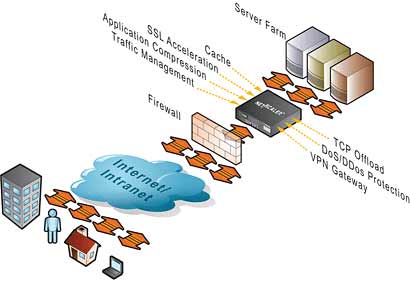
If you work with Netscalers, you already know how SNIPs and MIPs work. They are the IPs that communicate with your servers. Every packet from the outside world that passes through the Netscaler will hit your server as though it was coming from this IP. This is the default behavior on a Netscaler.

Unfortunately if your servers require the client’s true IP address, all you will see for every client will be the SNIP or MIP address you are using. Here are a few examples I have personally had to deal with:

- IIS requires client IP for IIS logs
- IIS requires client IP for ACL filtering
- Web application requires client IP for it’s own logging purposes
- Web application requires cilent IP for authentication

Now to get around this for IIS, you can install ISAPI filters and set your Netscaler to use a custom header to store the true client IP address and pass that along with every packet. The ISAPI filter in IIS would look for this particular header and log that instead of the SNIP/MIP. There’s a very nice Client IP extraction ISAPI filter with some great instructions located on this page from Citrix or you can even write your own:

http://support.citrix.com/article/CTX119347

This is great for logging but sometimes your web application may grab the IP address from web server variables. To return the IP address of the host making the request, the server variable that your ASP, ASP.NET, and PHP code will call is “REMOTE_ADDR”. Unfortunately REMOTE_ADR is going to have your SNIP IP and not the client IP when passing through the Netscaler. The good news is that if you have control of your code, you can make it call from a different location that includes the client IP your ISAPI filter is passing. So if your code currently uses:

Request.ServerVariables("REMOTE_ADDR")

then switch it to:

Request.ServerVariables("http_client_ip")

where “http_client_ip” is the real client IP address and not the SNIP. Everything will work fine after that.

Here’s a nice snippet of code you can run on your web server and hit from your client browser to see what all the Netscaler is passing to the server:


<html/>
<body/>
<p/>
NS SNIP or MIP IP address:
<%Response.Write(Request.ServerVariables("remote_addr"))%>
<br/>
<b/>The NS Inserted Client IP:</b/>
<%Response.Write(Request.ServerVariables("http_Client_ip"))%>
<br/>
Accept Encoding:
<%Response.Write(Request.ServerVariables("HTTP_ACCEPT_ENCODING"))%>
<br/>
Cookies:
<%Response.Write(Request.ServerVariables("HTTP_COOKIE"))%>
<br/>
</body/>
</html/>

(***Note, I apologize in advance if WordPress messes up the code block above. It usually changes the quotes in the code around so if you have issues with it, I will host a .txt file here with the code. Just comment to this post if you need it.)

This is all well and good when you have access to the code and can make this change but what about web apps that are 3rd party and you cannot modify the code? Well then you have no choice but to use the USIP (Use Source IP) feature on the Netscaler. What this does is pass the client IP straight through the Netscaler to your backend server so that the SNIP or MIP you are using on your Netscaler is never seen by the server (except for monitor probes from the Netscaler itself of course). This option is disabled by default. It can be applied to the entire Netscaler or turned on and off per service.

Best practice is not to use it and avoid it as much as possible. The reason is that using the USIP feature means you are going to lose very important features on the Netscaler such as connection multiplexing and surge protection. It’s always better to use the Client IP header insertion instead. In fact to date I have personally never enabled USIP in any environment I have built so far.

Here’s a very excellent and recent article from Citrix on the pros and cons of using USIP mode:

http://support.citrix.com/article/CTX121974

I hope this helps anyone trying to get around Client IP address related issues. Please feel free to post a comment on your own experiences or suggestions.

Categories: Apache, Citrix NetScaler, IIS Tags: , ,

How to monitor realtime traffic stats accurately on a Citrix Netscaler

July 9th, 2010 2 comments

The GUI on a Citrix Netscaler is nice but it takes 7 seconds to update and sometimes you need live stats and a 7 second delay is not going to work for you. You can do A LOT through command line you can’t through the GUI (isn’t that the case with pretty much anything though? :) ). I am writing this article to show you how to get stats on each of your VIPS and servers quickly and also monitor live connections and traffic into your appliance.


GETTING DETAILS
First, you might want to get some details on your Load Balanced VIP. I am calling my Load Balanced VIP “lb_vsvr_name” in this example. Here is how you do that:

1. SSH into the Netscaler using Putty
2. Type:

sh lb vserver lb_vsvr_name

You will immediately see a lot of stats on how this VIP is configured like it’s IP, it’s status, connection method, persistency, bound service groups, etc. Pay attention to the bound service groups. So to get details on one of those, type this where “svcgrp_name” is the name of your service group:

3. Now type:

sh servicegroup svcgrp_name

This will show you details on the service group such as the status and the individual back end servers. Let’s say you have two servers called “svr_name1″ and “svr_name2″. To get the details on those backend servers:

4. Type:

sh server svr_name1

and

sh server svr_name2

This will pull up stats on each of your backend servers.


GETTING REALTIME GENERAL PERFORMANCE STATS
1. Make sure you are still SSHed into the Netscaler using Putty
2. Type “shell” to enter the FreeBSD shell
3. Capitalization matters below or you will get an error. Type:

nsconmsg -s ConLB=2 -d oldconmsg

What this does is pull up realtime general stats on all your VIPs and services and continues to update it every 7 seconds until your press Ctrl+C to stop it. I know the display has a ton of info in it but Citrix actually has some very good documentation on how to read it all here: http://support.citrix.com/article/CTX113341


GETTING REALTIME TRAFFIC & CONNECTION STATS
Now that you have verified the VIP is up and have it’s IP and bound service groups. Here is how you can SSH into the Netscaler and get live traffic and connection stats for the VIP itself:

1. Make sure you are still SSHed into the Netscaler using Putty
2. Make sure you are not in the shell. Type “exit” if you are still in it from doing the previous section.
3. Now type:

shconnectiontable

This will give you every connection coming into the Netscaler. The columns displayed are in this order:

SRCIP = source IP address
SRCPORT = source port
DSTIP = destination IP address
DSTPORT = destination port
SVCTYPE = service type like HTTP, SSL, etc.
IDLTIME = idle time of that connection in milliseconds
STATE = current state of the connection, you will usually see it either waiting or established

Pretty hard to look at if the device you are looking at is in production and has a ton of traffic on it. So we need to filter this display. Let’s just look at how many connections we have to just one of the backend servers above. Type:

sh connectiontable | grep xxx.xxx.xxx.xx

or

sh connectionable "ip == xxx.xxx.xxx.xx"

where xxx.xxx.xxx.xxx is the IP address of one of the backend servers above. This will give you stats on all the connections to that backend server.

1. Anything that says “MONITOR” is the Netscaler itself testing for uptime so ignore those.
2. If you see “MONITORS”, ignore those too, they are just SSL based monitors.
3. If you see “HTTP” or “SSL”, that’s the real traffic you are after. Note if they say “TIME_WAIT” or “ESTABLISHED”. If it’s live traffic, the state should be an established connection.

Let’s get into some more advanced filtering. Let’s say you want to filter all monitors to that IP and only display SSL, HTTP, etc:

sh connectiontable "ip == xxx.xxx.xxx.xxx && svctype != MONITOR"

Let’s say you want to see all traffic to that IP but only established connections. Here is the syntax for that:

sh connectiontable "ip == xxx.xxx.xxx.xxx && state == established"

Let’s say I want all the traffic to that IP, established connections only, and only display SSL connections:

sh connectiontable "ip == xxx.xxx.xxx.xxx && state == established && svctype == SSL"


One thing to note, typically you can filter additional service types like this:

sh connectiontable "ip == xxx.xxx.xxx.xxx && svctype != MONITOR && svctype != SSL"

but I found that if you have “MONITORS” and you wanted to filter them, it does not work and gives you an error saying it’s an invalid command. I actually have an open ticket with Citrix about this bug so it should be fixed in a future release. In the meantime, just use a combination of a filter expression and grep to filter it out. Here’s an example:

sh connectiontable "ip == xxx.xxx.xxx.xxx && svctype != MONITOR" | grep -v MONITORS


FURTHER READING
If you need further info on commands and syntax available on the Netscaler, I have hosted the Citrix Netscaler Command Reference Guide for 9.1 here:

NS-CommandReference-Guide.pdf

Yes it’s 1742 pages but take the time to flip through it. It’s extremely powerful. The connectiontable related syntax begins on page 883 (873 in the guide). :)

Making a Logitech Harmony 900 remote IR mini blaster extension cable

July 3rd, 2010 3 comments

Though not IT related, this might help a fellow home theater aficionado. I use a Logitech Harmony 900 for my home theater room. This is Logitech’s latest RF remote which you can see here: http://www.logitech.com/en-us/remotes/universal_remotes/devices/5874

As pictured above, it comes with an IR receiver and two IR mini blasters which convert the RF signal to IR. These blasters are 6 ft. in length allowing you to stick them practically anywhere to control your AV equipment. My dilemma 6 ft. was not enough to run one of these mini blasters from the IR base receiver through the wall, through the ceiling, and down into the home theater room to control the projector.

Since these IR mini blasters have 2.5 mm jacks that connect them to the base RF receiver, I figured I could try using an extension cable and hopefully not lose any signal in the process. I bought a 12 ft. extension from Amazon for just $5.99. It was worth a shot:

http://www.amazon.com/gp/product/B000Z0YECU/ref=oss_product?tag=amaz98-20

I attached the extension cable to the mini blaster end and then the other end of the extension cable to the base receiver. That effectively gave me an 18 ft. mini blaster. Ran it through the wall and ceiling, then used double sided mirror tape to attach the blaster portion to the ceiling pointed at the projector which is a good 15 ft. to the back of the room. It works flawlessly and it’s barely noticeable attached to the ceiling! I hope this IR extension cable helps anyone that was in the same situation as me. Please do comment if it works for you. :)

Categories: Uncategorized Tags: