Archive

Archive for April, 2010

How to get the IUSR and IWAM user account passwords on an IIS server

April 28th, 2010 1 comment

IIS uses the IUSR_servername guest account to allow anonymous access to websites hosted on the server.  You can always change this to a different account or even change the password for this account yourself.  But sometimes you might be in a situation where you can’t or don’t want to change the password but need to know what password Windows has set for it when you installed IIS.

Here’s how the IUSR account works by the way:

1. User types in http://www.yoursite.com

2. IIS gets the page request, imitates the IUSR_servername account, then executes/accesses the webpage located in your home directory using this account.  It checks NTFS permissions and such during this time as well.  Please note that the IUSR account has the “Log on Locally” permission by default to accomplish all this.

3. If everything goes well, authentication is completed and the requested page is sent back to the user’s browser.  If something doesn’t go well, such as anonymous access is disabled or NTFS permissions to your root directory don’t included the IUSR account, the user will typically get an “HTTP 403 Access Denied” error message.

Anyhow, you can find the IUSR account password without having to reset it by using the Adsutil.vbs tool.  Open up command prompt and navigate to C:\Inetpub\AdminScripts.  Then type:

cscript.exe adsutil.vbs get w3svc/anonymoususerpass

or

cscript.exe adsutil.vbs get w3svc/wamuserpass

to display the IUSR and IWAM account passwords respectively.  You will notice that the passwords are just a bunch of asterisks.  To make them cleartext, navigate to C:\Inetpub\AdminScripts and edit Adsutil.vbs in Notepad.  Find this line:

IsSecureProperty = True

and change it to:

IsSecureProperty = False

Now run the script commands above again and you will see the passwords in clear text.  Make sure to put Adsutil.vbs back to the way it was because it’s not best practice in my opinion to leave your tool with clear text enabled.

Please note that with IIS 7, this has all changed:

1. The IUSR built-in account replaces the IUSR_Servername and IWAM_Servername accounts.  It also no longer has a password since it is a local service account and not a user account so this blog post does not apply to IIS 7 at all.

2. The IIS_IUSRS built-in group replaces the IIS_WPG group (worker process group)

Categories: IIS Tags: , ,

Double checking your system after recovering from a corrupted OS

April 9th, 2010 No comments

Disasters happen and with a bit of skill and some luck, you might be able to get back into your operating system.  But you might notice a bunch of things out of place or missing if you had to do a Windows repair or use the Recovery Console to set things back to factory settings.

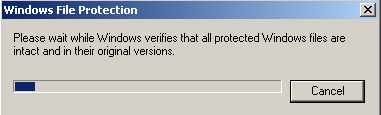
One of the tools I like to use is System File Checker (sfc.exe) which compares your file system against the original install disk and replaces missing or corrupt system files as needed.  Just go to a command prompt and type:

sfc /scannow

and Windows File Protection will begin scanning all your protected system files immediately.  If you get a prompt asking you to insert a disk, just cancel out and edit your registry key here:

HKEY_LOCAL_MACHINE\SOFTWARE\Microsoft\Windows\CurrentVersion\Setup

and verify SourcePath is set to your CD-ROM drive with your install CD in it.  You’ll have to reboot to make sure the changes take effect.  Also you might want to verify:

HKEY_LOCAL_MACHINE\SOFTWARE\Microsoft\Windows\CurrentVersion\Setup\ServicePackSourcePath

is set to C:\WINDOWS\ServicePackFiles just so your service packs you have installed after installing the original OS are taken into account and not overwritten by older versions.

How to edit Word and Excel documents in Sharepoint 2007 using Firefox

April 8th, 2010 2 comments

Yes, we all know how much of a pain it can be when you want to edit an Excel or Word document in Firefox but it opens up in Read Only mode.  With IE 8 and Office 2007, you would get a popup like this asking what you want to do when you left click on a document:

but in Firefox, you only get to download the document.  No option to edit it like this:

The quick solution I found that works for me is to install a couple of plugins for Firefox.  There are 2 ways to get around this:

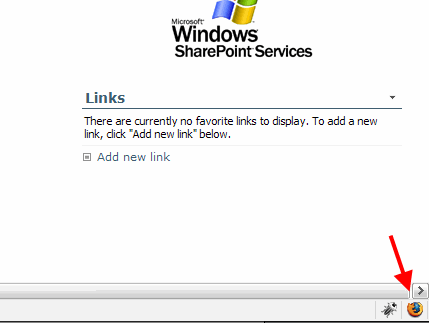
1. Install the Coral IE Tab pluginhttps://addons.mozilla.org/en-US/firefox/addon/10909- This allows you to switch whatever page you are looking at into a page rendered by IE but you are still in your Firefox tab.  You can also right click on your page in Firefox and open it in a new tab using IE so you have both versions.  Just use the “Switch Rendering Engine” option.  You can also have it actually open up in IE as well in a brand new IE window.  I PREFER CORAL IE over any other plugin because look how easy it is to change your rendering engine.  Just click the icon in the bottom right and your page is displayed in that browser . :)

Firefox + Sharepoint:

IE being rendered in Firefox + Sharepoint:

2. Install the IE View Lite pluginhttps://addons.mozilla.org/en-US/firefox/addon/1429 – This allows you to to right click on a page and quickly load the page up in a new IE window.  Kind of like Coral IE but a “lite” version of it that only allows opening up a secondary window.

I know, not the easiest solution but it works for now until I find a better way.  MS treats Firefox like a second class browser with no AJAX or rich text editing for some reason.  All this will change with Sharepoint 2010 but for the great majority of the world that will remain on Sharepoint 2007 for a while, we have to come up with workarounds.  Looking forward to May 12th, 2010 when it’s officially released along with Office 2010. :)

You’ll notice a lot of nice little features you are used to in IE missing when browsing your Sharepoint site with Firefox because of this.  One thing I miss but haven’t looked into is getting the “Open with Windows Explorer” action back.  This “Explorer View” uses WebDav (http://en.wikipedia.org/wiki/WebDAV) to open a connection straight to your Sharepoint document library in a familiar Windows Explorer interface making it easy for end users to upload, move, rename, etc. in bulk. I am heavily dependent on this feature myself.  I’m thinking Firefox has to have some kind of WebDav plugin installed to get this working.  I’ll look into it and post here if I find something.

One thing to note, and I haven’t tried it yet, is that some guys over at Codplex are working on some basic Sharepoint 2007 + Firefox integration here:

http://wssfirefox.codeplex.com

The only reason I haven’t tried it out is because of the server side components that need to be installed.  I need to get around to trying it on one of my test farms at some point.  Most enterprises are not going to support Firefox anyhow so it’s not a priority issue to get resolved for me.  More of a personal challenge. :)