Archive

Posts Tagged ‘Citrix’

How to setup Citrix Netscaler (Access Gateway) with multiple domains for web browsers and mobile devices

May 9th, 2013 3 comments

I’ve covered Access Gateway quite a bit in the past and these two articles on my blog are a good primer for what I’m about to cover:

1. How to setup your Citrix Netscaler (Access Gateway) and Web Interface for iPads and mobile devices that use Citrix Receiver

2. Quick way to brand Access Gateway and Web Interface 5.4 with company logo and colors

Now let’s throw a new scenario into the mix. You want to allow users from another domain access to resources through your Access Gateway and Web Interface. Here is what you need to do to accomplish this.

SETTING UP A DROPDOWN BOX TO PASS THE DOMAIN
On your Access Gateway, if you followed my “branding guide” article above you will have noticed on the themes available from the Citrix blogs there are 2 versions, one normal and one with a dropdown. If you chose Horizon to customize like I did, make sure to download Horizon2.gz which has the code for the dropdown already in it. You just need to add your domains in the code. This is found in these two files:

\Horizon2\ns_gui\vpn\index.html

\Horizon2\ns_gui\vpn\tmindex.html

If you have your own theme and just want to add the code, Citrix has an excellent CTX article here covering it:

How to Add a Drop-down Menu with Domain Names on the Logon Page for Access Gateway Enterprise Edition:
http://support.citrix.com/article/CTX118657

What’s happening here is that a dropdown box is created with pre-populated domain names that you specify in your code. The user selects the proper domain when logging in and then this domain name is inserted into the header and passed to the Netscaler Access Gateway vserver where the authentication policy examines it. Based on the name the Netscaler sees in the header, it forwards the request on to the correct authentication server. This works great with LDAP authentication servers. I have not tested it with TACACS or RADIUS yet.

SETTING UP ACTIVE DIRECTORY LDAP AUTHENTICATION
Now it’s time to setup your Active Directory authentication for each of your domains.

1. Download LDAP Browser 4.5 for free here: http://www.ldapbrowser.com/download.htm

2. Go to your Netscaler under System > Authentication > Servers tab and create a new LDAP server. Use port 636 for secure LDAP instead of 389. Use LDAP Browser to get the Base DN and Administrator Bind DN. I prefer to use the app so I don’t fat finger the distinguished name and spend an hour trying to figure out that I missed a comma. Using LDAP Browser is much quicker and less error prone. The Base DN can be your entire AD domain or you can lock it down to an OU. The Administrator Bind DN is the actual account name that is used to enumerate AD. So CN = the user name, OU= the OU it’s in, etc. Add the password for this service account.

Make sure to select “SSL” for security type near the bottom. Click the blue “Retrieve attributes” link and it should talk to AD. Then the drop down boxes in Other Settings will not be greyed out anymore. Set the following:

Server Logon Name Attribute = samAccountName
Group Attribute = memberOf
Sub Attribute Name = CN
SSO Name Attribute = UserPrincipalName

So everything should look like this so far:

1

3. Now expand the Netsted Group Extraction arrow near the bottom. You need to enable it and set the same Group Name Identifier as you did for Server Logon Name Atrribute. In this case samAccountName. Then press OK to create the server:

2

4. Now it’s time to create the policy and bind it to the server. Hit the tab for Policies and create a new policy. Choose the server you just created. For the Expression, you will want:

REQ.HTTP.HEADER Cookie CONTAINS domain1

where domain1 is the name of your first domain.

3

5. Now do steps 2 through 4 again but for your second domain, domain2.

6. Almost done. What we’ve done so far is create two authentication servers and two authentication policies. These two policies are good for web browser users (IE, Firefox, Chrome, Safari, etc.) but mobile devices using the Citrix Receiver native app like iPhones, iPads, Android phones, Android tablets, etc. will not work just yet. This is because they cannot pass cookie values. Nor do they pass the domain during authentication against the Access Gateway (a traffic capture can confirm it only passes user ID and password). You need to create a different set of authentication policies for these. So you will create one for each domain. You will bind to the same authentication server as the other policies but you’ll want to add the word “mobile” or something descriptive to the end of the policy name so you know what it is for. The expression should be:

REQ.HTTP.HEADER User-Agent CONTAINS CitrixReceiver

4

7. Now do the same for your other domain, domain2.

8. Now go to your Access Gateway vserver and add all 4 policies you created. Take a look at my example screenshot closely and the priority order.

5

Here is the logic behind this policy order:

100 – Domain1 user logs in via web browser and uses drop down/passes cookie for domain1 so authenticates against domain 1 DC.

110 – Domain2 logins via web browser and uses drop down/passes cookie for domain2 so authenticates against domain 2 DC

120 – Domain1 user logins via iPad so first two policies are automatically false since the native Citrix Receiver app can’t pass a cookie. Authentication policy is looking for CitrixReceiver in the header so it will try to authenticate against domain 1 DC. It will be successful and the user will see his apps.

130 – Domain2 user logins via iPad. The first two are false for the same reason as 120. The expression from policy 120 is true so the user will actually authenticate and fail against domain 1 DC. Then it moves on to the 130 policy and authenticates against the domain 2 DC. It will be successful and the user will see his apps. Note, if a user has the same account name on both domains, it will cause a rejected login attempt on domain 1 which depending on your Active Directory account lockout policy can eventually lead to an account lockout. Just be mindful of this and adjust your policy accordingly if you need to.

MODIFYING YOUR SESSION POLICIES
9. Now on to the session policies. If you followed my guide on How to setup your Citrix Netscaler (Access Gateway) and Web Interface for iPads and mobile devices that use Citrix Receiver you should have 2 policies. One for regular traffic and one for mobile/Citrix Receiver traffic. Should look something like this:

7

Go ahead and click on the blue profile link for the CitrixReceiver policy first.

10. Under the Published Applications tab, clear the Single Sign-on Domain, you don’t need it anymore. SSO is being handled by the authentication server now. Specifically the SSO Name Attribute setting for each server which you set as UserPrincipalName. So it is automatically passing the UPN formatted user credentials to the Web Interface as the same time the user is successfully authenticating against the Access Gateway using the SAM account name. Pretty cool right? Now do the same for your other policy that controls regular web traffic.

8

11. An extra step for your mobile traffic policy. Under the Client Experience tab, you can set the Clientless Access to Allow and the Plug-in Type to Java but it’s not necessary. It will still work but since it’s mobile traffic only, this won’t hurt.

9

SETTING UP ACTIVE DIRECTORY AUTHENTICATION GROUPS
12. Now let’s move on to setting up your authentication groups. Let’s say each domain has a security group that gives users access via the Access Gateway. Again, there are 2 well documented methods for group extraction:

How to Configure a NetScaler Appliance for Active Directory Group Extraction for LDAP:
http://support.citrix.com/article/CTX111079

How to Configure a NetScaler Appliance for Active Directory Group Extraction for LDAP Using the Groups Allowed To Login Feature:
http://support.citrix.com/article/CTX125797

I prefer the first method. It’s basically just one step in one place (the authentication server object) and goes into effect at the authentication level. No fooling around trying to control it via a session policy. So go back to your 2 authentication servers you created before and take a look at the Search Filter field. It should be blank at the moment.

13. Go to LDAP Browser and get the DN for for the security group you want to give access to for your first domain.

14. Go back to the Search Filter field and type memberOf= followed by the DN (distinguished name) for the security group. So it should look something like this:

11

That easy. Make sure to do it for the authentication server for domain 2 as well. Go ahead and test your login scenarios and everything should work perfectly.

ADDING REDUNDANCY FOR YOUR AUTHENTICATION SERVERS
I only covered how to add a single authentication profile (domain controller) for each of the 4 policies on the vserver. Most companies are going to have multiple DCs. There is no way to add multiple DCs per authentication policy. The solution is to create a Load Balanced vserver with all your DCs behind it per domain and then add the IP of the vserver to an authentication server that is bound to the authentication policy. So in the example I’ve been showing you, I would have to create 2 load balanced vservers since I am working with 2 domains.

15. Go to Load Balancing > Servers > and add all your servers here:

12

16. You guys know I prefer to create service groups vs. services and the reasons why if you’ve read my previous Netscaler articles so go to the Service Groups section and add a new services group. Select SSL_TCP for the protocol.

22

Specify the server based members and make sure to set the port to 636. You can weight the servers here if you want to. Under the Monitors tab, go ahead and add a ping monitor or whichever monitor you prefer. Do this for each group of your authentication servers. You might want to group them by city, datacenters, production vs. DR, or whatever makes sense in your environment.

17. Now create a load balanced virtual server for your first domain. Select SSL_TCP for the protocol, port 636, and give it an IP address. Under the Service Groups tabs, add the groups you need. Keep in mind you won’t be able to see the SSL_TCP service group you created until you set the vserver protocol to SSL_TCP. Under the Methods and Persistence tab, you can get creative if you like or just leave it the default Least Connection. It really depends on your environment and where you prefer traffic to go. Under the SSL Settings tab, bind the cert you use for your Access Gateway vserver. Do all of this for your other domain as well. Both load balanced vservers should be in the UP state at this point.

23

18. Now go to System > Authentication > Server tab and left click on one of the DCs. Then at the bottom click Add, this will copy all of the settings on the DC you had highlighted and allow you to create a new one based off of it. So you don’t have to put all your DNs and stuff in again. Just give it a unique name and for the IP, type in the IP of LB vserver you just created for that domain:

24

Now do the same for the other domain.

19. Now go to the Policies tab and edit each of your 4 policies. You can simply change the server in the drop down to the new one you created for each of your 4 policies and you’re done. All authentication traffic is now going through your load balanced vservers. Keep in mind that before, LDAP traffic was going from your NSIP to each DC. When you use LB vservers, traffic is going from the SNIP to each DC. So make sure you have your firewall ports open from the correct source IPs or you won’t be able to authenticate. Retest all your scenarios and everything should continue to work just as before.

TROUBLESHOOTING LOGINS
Once you’ve set everything up you might encounter issues and need to troubleshoot. There are a few ways to troubleshoot logins. I’ve covered this before here:

How to troubleshoot RADIUS or TACACS authentication issues on a Netscaler/Access Gateway

20. First you can troubleshoot the authentication layer but capturing of all authentication happening on the device. Open Putty and connect via SSH to your Netscaler. Enter the shell by typing

shell

and pressing enter. Then type:

cat /tmp/aaad.debug

and the cursor will go to the next screen and wait. Open up your web browser and attempt to login to the Access Gateway. Immediately you will see the request happen in your SSH window. You’ll see exactly what is happening line by line like this. You’ll even see the nested group extraction taking place:

16

The last line will show the accept or reject:

17

When you’re done, press Ctrl+Z to exit.

21. The next layer to troubleshoot is all the polices. All of them, authentication, session, etc. You want to see everything a user hits when he logs in. So type the following:

nsconmsg -s disptime=1 -d current -g pol_hits

and login to the Access Gateway again using a web browser. Immediately in your Putty window you’ll see what all policies were hit:

18

This will help troubleshoot your policy flow. We’ve built a lot of intelligence into the cascading authentication and session policies and based on the user’s device and domain, it will vary what all they hit. This is an excellent way to test each of those scenarios.

22. The last step is getting down to the packet layer and analyzing the traffic using Wireshark. I’ve covered this in my previous post but go to System > Diagnostics > Start New Trace and set the packet size to 0. Then press Start.

19

Login to your Access Gateway via web browser, stop the capture, and download it to your desktop. You will also want to WinSCP into the Netscaler and grab the SSL RSA key for the SSL cert you are using on your Access Gateway site so you can decode the SSL traffic. Then double click on the .cap packet capture file and it will open in Wireshark. Go to Edit > Preferences > Protocols > SSL > and click Edit in the RSA Keys field:

20

In the SSL Decrypt Window, hit New in the bottom right side and this window will popup. Type in the IP address of the Access Gateway vserver, port 443, protocol http, the exact path on your hard drive to the SSL RSA key file, and leave the password blank. Then press OK to add it:

21

Press okay and get back to your capture. Now in the Filter field, just type the following:

frame contains youruserID

because we want to find all the instances of your user ID being passed. You should be able to find your user ID and password in plain text. Follow the TCP stream if you need to to find out exactly what is happening.

Hope this helps. Please leave a comment if this post helped you or if you have any questions and I’ll try my best to help. :)

Opening Sharepoint documents in a Windows 7 XenDesktop session using XenApp published Office products with content redirection

March 26th, 2013 2 comments

Wow, long title there! Just like it says, I’m going to cover opening Sharepoint documents in a Windows 7 XenDesktop VDI session using XenApp published Office products with content redirection enabled. Here’s an example scenario:

  • Your company uses Sharepoint and the URL is http:\\sharepoint.domain.com. It is part of the Local Intranet zone in IE.
  • Your users are using Windows 7 VDI/XenDesktop VMs with Citrix Receiver Enterprise pulling published apps into the Start menu.
  • You have Office 2010 products (Word 2010, Excel 2010, Visio 2010, etc) published via XenApp with content redirection enabled so .docx, .xlsx, .vsd files launched in the VDI session will open using the published Office app.
  • Your users want to click on a Word, Excel, Visio, etc. document in a Sharepoint document library and click the Edit button to edit the document instead of just Read Only. They expect the published Office app to launch and allow them to edit the document.

THE PROBLEMS
In this scenario, when the user clicks on let’s say a Visio document in Sharepoint, the published app will launch but the document will not be sucked in. You’ll get a “File not found” error and if you look closely, the URL begins with “\\” as if it’s a UNC path instead of an HTTP path:

2

If you click OK, Visio will open but no diagram will open.

If you right click, Save As the Visio diagram to your C: drive and attempt to open it locally, it will launch the published Visio instance but will give you the following “File not found” error:

1

Again, look closely. It says “\\Client\” instead of your VM’s name.

THE FIXES
Well, really it’s 1 fix and 1 workaround for now. Let’s start with the fix first. We’re going to get local files and files residing on network shares launching right using the published app. I’m going to use Visio and a .vsd file again as the example:

1. On the Windows 7 VM, you must enabled Native Drive Mapping to be able to launch the .vsd file via published Visio. You can follow the CTX article here to make the registry change:

http://support.citrix.com/article/CTX130378

or you can enforce it via group policy. One thing though, on Windows 7 x64 the path is:

HKEY_LOCAL_MACHINE\SOFTWARE\Wow6432Node\Citrix\ICA Client\Engine\Configuration\
Advanced\Modules\ClientDrive

NativeDriveMapping
Reg Type: REG_SZ
Add the Value: True

Once the value is set to TRUE, try launching the .vsd file you saved to your hard drive or on a network share. It will launch immediately. Then go to File – Save As in Visio and checkout the path bar. It will say “\\Client\C$\Users\xxxx\”. So now your system recognizes the word “Client”.

3

This is because you’re going through 2 virtualization layers. Citrix has an excellent article detailing how Client drives are passed through multiple sessions here:
http://support.citrix.com/article/CTX127872

You can also read more about the NativeDriveMapping key here:
http://support.citrix.com/article/CTX124389

Additionally here is a really good CTX article from Citrix that covers Client Drive Mapping troubleshooting that might be helpful to you:
http://support.citrix.com/article/CTX238200

And some info describing differences in Client drive mapping between the different versions of XenApp and Presentation Server here:
http://support.citrix.com/article/CTX127614

2. Now back to Visio diagrams in Sharepoint. First you need to verify content redirection is behaving correctly. In my case, I needed to make sure to change the published app location to include the “%**” switch. By default when you enable content direction, it will be:

"D:\Program Files (x86)\Microsoft Office\Office14\VISIO.EXE" "%*"

with just one asterisk. You need to add two so it looks like this:

"D:\Program Files (x86)\Microsoft Office\Office14\VISIO.EXE" "%**"

The reason for this is documented in this CTX article:

http://support.citrix.com/article/CTX116887

This was written for Presentation Server 4.5 but it still applies to XenApp 6.5 just fine.

Once you get content redirection squared away on your XenApp server, things will still not work correctly unfortunately when opening docs in Sharepoint in your XenDesktop session. You can try right clicking and editing but you will still get the File not found error. This error has nothing to do with Client Drive Mapping. Being a Sharepoint Architect in a previous role long ago, my gut feeling was this is a WebDAV issue. Remember, Sharepoint uses WebDAV with document libraries though to the casual observer it might appear to be a UNC file share path. My gut was telling me Receiver was not handling WebDav paths correctly and was treating them like regular SMB file share paths. No proof this is the culprit just yet, only a hunch.

Let’s run an experiment. In your Sharepoint document library, click Actions > Open with Windows Explorer:

4

You’ll notice the path bar says “http://sharepoint.domain.com” when you open it here:

5

Go ahead and launch the Visio diagram in this document library. When you try and launch it, it will launch published Visio and give you the same File not Found error as before. In some scenarios even an Access Denied error though it never actually was able to find the file. Again, it is looking for “\\sharepoint.domain.com” instead of using WebDAV (or the DavWWWRoot keyword) which should be parsed like the HTTP protocol “http:\\sharepoint.domain.com”. Sharepoint Content Redirection is never going to work because Citrix Receiver doesn’t know how to get there. One work around is to tell your users to save locally, edit, then upload. But this is annoying and most users will complain.

I started thinking Mini Redirector (which is Microsoft’s WebDav client and part of the Windows 7 OS) was trying to hand-off the DavWWWRoot keyword in the URL to Receiver and Receiver didn’t know what to do with it. Looking at the URL though it didn’t even seem to be passing it through. It was as if it was passing a straight UNC path. Or maybe is was not talking to owssupp.dll which is required to interact with and edit docs in Sharepoint. Maybe somehow it wasn’t handing off through Receiver properly. Now I was really starting to go down the rabbit hole and before I dug further, I figured I’d give Citrix Support a call and see if they had any input.

I was able to talk to a XenApp support technician and a XenApp Developer who were both very knowledgeable. I explained my WebDav theory and we ran a little experiment. We ran Process Monitor from my Windows 7 workstation and attempted to edit a simple Word document in Sharepoint. The published version of Word launched as expected and failed to find the file. Here is the URL that was passed to the PNAgent when we used the Process Tree display:

6

You can see that it passed:

\\Client\\\sharepoint.domain.com\link\to\doc\repository\test jason.docx"

Looks a bit odd, doesn’t it? No wonder it can’t find the file.

Then we went to the XenApp server with Word 2010 installed locally, opened Internet Explorer, and navigated to the Sharepoint document library. When I clicked Edit on the Word document this time, this is what was passed to the locally installed Word:

7

And of course the Word document successfully launched. You can see it passed a nicely formatted HTTP URL:

http://sharepoint.domain.com/link/to/doc/repository/test%20jason.docx"

The XenApp Developer verified this was actually a bug and needed to be fixed. It may or may not be WebDav related, but he confirmed there is definitely a disconnect at the Content Redirection level via Sharepoint as I had suspected. It has been added to their bug queue to get taken care of.

In the mean time, his suggestion is to publish Sharepoint itself on the same server Office 2010 products are installed on (publish IE passing the Sharepoint URL during launch). This is a good workaround but may annoy a few users. I always hate publishing IE because of the stuff you have to do to lock down/harden the browser. People can get confused and start browsing to Youtube or other process intensive websites using this published instance of IE if you don’t completely lock down the allowed URLs. This can cause a severe impact on XenApp performance for all users on the box. If I limit tabs, then people start complaining they can’t open additional tabs and the helpdesk gets flooded with phone calls. So just keep that in mind if you use this workaround.

Another work around I found online is by Anthony Obi:

http://community.obilogic.co.uk/blogs/teamblog/archive/2011/10/25/sharepoint-2010-edit-document-via-citrix-xenapp.aspx

He has an issue where owssupp.dll was not being detected on the client system (because it wasn’t there) and added an extra menu item in his Sharepoint deployment to edit documents as a work around. He modified the new Edit action to launch some Javascript that talks to PNAgent.exe that then talks to the published Office instance and passes the correct URL. This might work as well for you but of course it requires a modification of your Sharepoint environment and end user training.

I will post here as I get updates from Citrix Support on this issue. It’s a fairly unique scenario but definitely not uncommon in the real world as application delivery and desktop virtualization continue to be separated through multiple layers.

SEP 12 not working with PVS 6.1 and Windows 7 XenDesktop VMs

July 26th, 2012 4 comments

We came across an issue getting Symantec Endpoint Protection 12 working with Provisioning Services 6.1. When you install SEP 12 on the Windows 7 VM, it causes the VM to freeze during the install. Sometimes it actually finished installing but then immediately after the VM freezes. In both cases you have to force a reboot. Once the VM is back up, you are not able to login using domain credentials. It will give you a “The trust relationship between this workstation and primary domain failed” error message. So you have to use local admin credentials. Once you are in, some of your apps might be broken. Symantec is sometimes in a half installed state. Running LiveUpdate fails. Your OS is pretty much hosed at this point and you have to start all over.

Through extensive testing, we discovered that SEP 12 was somehow impacting the network stack causing the vDisk to disconnect. SEP and the PVS Target software were vying for control.

We escalated this through Symantec and were finally told there is a compatibility issue between SEP 12 and PVS 6.1 but it is not public knowledge yet. There is an internal ETrack on the issue. SEP 12 has been used with PVS 5.x and provisioned desktops successfully. When Citrix released PVS 6.x, a driver was changed from the previous version and issues have been seen on provisioned desktops if any of the following 3 SEP modules are installed: Advanced Download Protection, SONAR Protection, and IPS. Symantec is working on a code change, but meanwhile you can leave out these modules.

After performing more tests without these 3 modules installed, SEP 12 is installing and running normally without impacting the PVS infrastructure. This is version 12.1.1101 shown below we have tested on. Hopefully a newer version of SEP will be fully compatible with PVS. After the install is done, run a full scan, run the VIE tool (Virtual Image Exception tool), reset your hardware IDs, and you’re ready to spin up VMs in standard/read only vDisk mode.

UPDATE: September 28, 2012
Symantec released an update to fix this as part of their definitions from September 4th onward. It comes to the SEPM automatically as part of the daily update process so everyone should have it at this point. No manual patch or fix is needed. It changes the timing of Symantec. Symantec and the PVS Target will no longer vie for control of the network stack as I understand it. Symantec will start delayed after the PVS Target has fully started. I don’t have any further technical details but I am hoping Symantec will have a KB up soon covering this. We have been testing and everything seems to be working well.

How to install and configure PVS 6.1 with XenDesktop 5.6

June 26th, 2012 24 comments

Once a company has a XenDesktop or XenApp environment that is pretty mature, they often turn to Citrix Provisioning Services (PVS) to help scale the environment. There are many reasons to use or not use PVS for your VDI or XenApp environment and that’s a whole other discussion. The purpose of this blog post is to get you familiar with how to implement it. There are not a whole lot of step by step guides out there and PVS can be a real beast to wrap your head around if you are not familiar with it.

Now for the disclaimer. This guide will describe how I do things for my PVS environments. This will probably be different for your environment so make sure you thoroughly understand the reasoning behind each step and how it applies to your environment. What works for me may not work for you.

So let’s get started!

INSTALLATION
You must be logged into the PVS server using a service with DBO rights or the install will fail. Have your DBA set the service account to SA temporarily for the install. After install, remove SA rights and just give these rights only:

• dbcreator; required for creating the database
• securityadmin; required for creating the SQL logins for the stream and soap services
• db_datareader
• db_datawriter
• execute permissions on stored procedures

I find this to be the most pain free method of getting PVS installed with no DB errors. Now on to the actual steps:

1. Enable Application Server role (.NET features will be automatically installed)

2. Start Wizard, hit Console installation, run through all of it. Just hit next accept all the license agreements and let it install everything until you get to the path to install part.

3. Choose Path for install (change to D:)

4. Choose Complete install

5. Once done, click Server Installation on wizard home page > Install Server

6. Install SQLncx64 when prompted

7. Change path to D:

8. Choose Complete install

And you’re done! Not very hard at all.

CONFIGURATION
Now we get to the slightly harder part, configuration. This is going to depend a lot on how you have your hardware setup. I want each of my Windows 7 provisioned desktops to have 2 NICs. One NIC is for regular network traffic and the other for streaming traffic. You don’t have to have 2 NICs and separate your traffic like this but I do for production environments. It is really only beneficial for large scale implementations so if you are doing something smaller scale or for a test environment, 1 NIC will suffice. Just keep in mind everything below in my guide is written as if you have 2 NICs:

9. For DHCP, choose service that runs on this computer and choose Microsoft DHCP. So the PVS server will have the DHCP server role running and it will be handing out streaming network IPs to the VMs as they boot. They will get regular network IPs from your regular DHCP servers just like any physical box on the network. More on this later.

10. For PXE boot, choose service that runs on this computer and choose Microsoft DHCP as well.

11. Create farm or join farm depending on what you’re doing.

12. Either choice will will ask for database info on next page

13. Type in your DB info and hit Next

14. Choose a database ***DO NOT USE A PRE-CREATED DB, just type the new DB name in the Database name box and it will create it automatically once you hit Next***. I’ve run into numerous issues in the past attempting to pre-create a database. I’m telling you now, get SA rights temporarily as I mentioned in the first part of this guide if you can. It will make your life easier.

15. My E: drive on my PVS Server is a high performance flash based IO accelerator card in this case. That is where I will put my Store. You will want some very read friendly storage for your Store as this is where you will be putting all your golden images.

16. Type in your license server info.

17. Keep user account as Network service account

18. Hit Yes wen prompted for configuring the database with the account

19. Leave password updates to the default of 7

20. Check the teamed NIC for the “Provisioning” network, not the regular network traffic network. In this case my streaming traffic/provisioning network is only routable within my blade enclosure and my interface has an IP of 192.0.0.1

21. Check the Use the PVS TFTP service option

22. Leave the default for stream servers boot list. It should be the IP of the server itself on the “provisioning” network.

23. Advanced button has some settings, leave default

24. Hit finish on confirmation page. It should look something like this.

25. Go to your NIC for PVS traffic (or teamed NIC) on your PVS server and disable IPv6. Leaving it enabled can lead to issues.

26. If using your server for DHCP as well as I mentioned above, install the DHCP Server role.

27. Select just the PVS network

28. 0.0.0.0 for the DNS servers

29. WINS not required

30. Create your scope

31. Disable DHCPv6

32. I skipped authorization when taking the screenshots but you should do it now if possible.

33. Confirm and install

BUILDING YOUR BASE IMAGE
Now on to building your Windows 7 base image. This is the base image that will be completely clean, very little customization. This will be the primer for your golden images later.

Building an image is not to be taken lightly. These two articles from Citrix are a good read so you have a solid understand of what you are going to do.

CTX121028 “Best Practices for Creating a XenDesktop Image” is an older article but still a good read if you are building your image for the first time:

http://support.citrix.com/article/CTX121028

CTX131481 “Recommended Install Order for Preparing Target Device Captured by Provisioning Server to Deploy vDisk” is a bit newer and is also a good resource you should read through before proceeding:

http://support.citrix.com/article/CTX131481

34. So first you need to build a VM out. Just go to XenCenter and run the “New VM” wizard. Choose the Windows 7 (64-bit) template.

35. Give it a name and description

36. Choose the MSDN Windows 7 ISO

37. Choose a host server

38. 2 vCPUs, 4 GB RAM (4096 MB)

39. Choose local storage for the disk. You can add more disks or even increase the size of a disk under Properties.

40. Delete ALL the NICs, you will recreate in the right order in the next step.

41. Click Add and add the PVS bond first, THEN the network bond. So in the example Bond 4+5 first, then Bond 2+3. Note: This is a critical step. Changing the order or adding/removing NICs later is not recommended as it breaks stuff between the XenServer Tools and PVS Target agent in my experience. Get your network setup right the first time and in the right order to avoid issues. Always put the PVS network first, network traffic second.

42. Hit Finish on confirmation page to build the VM

43. Go to the console of the new VM and run through the Windows 7 setup wizard. When it comes time to name the PC, make sure it is not a name that already exists on your network. In this example I will use “Win7MSDNBaseISO” for demo purposes but you should come up with some kind of naming scheme for your environment since you will eventually have several golden images and you don’t want to confuse them. Something like “GOLD-ACCT01″ for your Accounting departments first golden image, etc.

44. Login and install XenServer Tools. Without it your NICs will act wonky. Like sending malformed packets and such which cause an HTTP 400 server error to any website you navigate to. You will need to reboot after the install. Once it’s back up, it will detect the NICs and likely prompt you to reboot again after installing the new hardware so go ahead and do it.

45. Log back in and then run your Windows Updates and/or Microsoft Updates. Don’t install any company related apps yet if at all possible. Make it as generic and clean as possible. Remember, you are building a base image to suck into a vDisk, not a golden image just yet. Whether you have just one golden image for your whole company (not likely in most environments) or several per department, try to keep the base image as lean as possible. You’ll also notice your NICs are now labeled are looking a lot healthier than before as well. Adapter 0 may say Unidentified network since your provisioning network should ideally be private. **NOTE: You can add the machine to the domain but, DO NOT install the VDA agent yet.

46. If you click on the network tab, you will notice both NICs have IPs whereas before the XenSever tools install it was Unknown.

47. Snapshot your VM. It’s not necessary but I like to as a precaution. From here if I mess up on something or forgot something, it’s easy to revert to my snapshot and fix whatever needs fixing. Beyond this point it becomes tricky.

48. Now install the Provisioning Server Target Device Software from the PVS ISO. Just click the Autorun.exe.

49. Click Target Device Installation

50. Hit Target Device Installation on the 2nd page too and it will launch the wizard. Run through the EULA and hit Next through all the windows until the install is done.

51. Uncheck the Launch Imaging Wizard link and hit Finish.

52. Hit Yes to reboot and mount your PVS boot disk as the VM comes back up or you can just shut down for now if you don’t have one yet.

53. Open up Provisioning Services Boot Device Manager (BDM) on your PVS server and create an ISO if you don’t have one already. It needs to have the IP address of the server on the provisioning network NIC.

54. Options can all be default

55. Use DHCP, swith the Boot Device to Citrix ISO Image Recorder, then hit Burn. Drop the ISO in an ISO Library your XenCenter can see.

56. Here’s where things may differ for you if you have used older versions of PVS before Imaging Wizard is where its at today. The old way of doing things was pre-creating a device on your PVS server with the same MAC address as the VM’s NIC, pre-creating a vDisk and calculating the necessary size, formatting it, assigning the vDisk to the device, then running BNImage to capture the system and push it into the vDisk. None of this manual work is necessary anymore. The Imaging Wizard works really well and will do everything for you. I actually first took screenshots of everything the manual way just for reference so you know where to look if something breaks. But then I figured that showing that whole process might confuse you so I will show you the Imaging Wizard way only. If you need me to, I can post an addendum to this article showing the manual way. Just leave a comment if you’d like to see it.

So now log back in once the VM is up and start Imaging Wizard. Enter your PVS server farm details.

57. Hit next and let it Create a new vDisk. Just hit Next again.

58. Give the vDisk a name. The vDisk size in the store will automatically be calculated. I left the VHD type to Fixed but you can choose Dynamic. Citrix has started recommending Dynamic as a best practice these days. I like to do 16 MB block size if doing Dynamic personally. It just means it will grow in 16 MB chunks. Again, make sure you select a good naming scheme for your vDisks as it becomes very important to keep them organized.

59. Choose KMS for key management (assuming you are using KMS)

60. Leave the image volume sizes all default

61. Type in a target device name, choose your streaming traffic NIC, and choose a collection:

62. On the confirmation page, click Optimize for Provisioning Services.

63. This will make a ton of registry changes that will optimize your image for PVS using ngen.exe in a cmd prompt window. Just hit OK and wait several minutes as it completes this process.

64. Once it’s done, hit Finish to begin prepping the vDisk on your PVS server’s store. It will immediately allocate the space for the vDisk since you are using Fixed so make sure there is enough room.

65. Once it’s done, it will ask to Reboot. Hit No.

66. Now right click on the VM in XenCenter and change the DVD Drive boot order to first and disable everything else.

67. Change the ISO in the DVD drive to the ISO you burned above.

68. Now go back to your PVS console and verify the device now has the vDisk attached under it’s properties. You can also choose to list the local hard disk in the boot menu.

69. Now you can reboot your VM. It will boot using your ISO, connect to the PVS server, obtain an IP on the PVS network, connect the virual disk you created. The vDisk is still in private mode. You can verify this in the PVS console easily. Just refresh and you will see a green check mark next to the device. It will have an IP and will tell you which PVS server it is connected to.

70. Log back into your VM now. It will automatically kick off the vDisk capture by loading XenConvert to capture the image. It will begin pushing your image to the vDisk you created on your PVS server.

71. Sometimes there may be errors (non-critical) but make sure to read the log and verify there is nothing critical in there. Then hit Finish.

72. You will be logged back into your Windows 7 VM at this point. Go ahead and shut it down.

73. Go to your PVS server and change the Boot From properties on your device to vDisk.

74. Now go to the storage options of your VM and detach the local storage on your XenServer. You don’t need it anymore. Then boot up your VM again. This time you will be booting directly into the vDisk image you had pushed across before on the server.

75. In the system tray menu, you can verify your vDisk is connected. Also in Explorer, you will only see the c: drive which is your vDisk.

76. I HIGHLY recommend you make a backup copy of the .vhd in your Store right now. It is a clean image with no apps and if something happens, this is the image you can revert back to. Think of it as your “Stage 1″ vDisk. Make the copy and store it away somewhere safe. Once you do that, since it is still in private mode and if you haven’t done so already earlier, go ahead and add it to the domain. Then reboot when prompted. Don’t forget to add your necessary security groups as local admins before rebooting.

77. Log back in and install and other apps your company may need for the base image. You can begin installing core applications like Adobe Reader, Flash, SEP, SnagIt, NAC agent, etc. Apps that need to reside on every PC on the network. Nothing specific. You should also do your OS customizations at this time if you have any. Then lastly, install the XenDesktop 5.6 VDA agent. Make sure you use AutoSelect.exe to install it and not the .msi on the CD or you will have issues. Your path will be something like this if you left the XenDesktop 5.6 install files somewhere on your DDC:

\\yourDDCservername\Downloads\XD5.6_VDI_Single2\XenDesktop56\AutoSelect.exe

78. Choose Advanced Install

79. Accept the EULA

80. Leave the default Virtual Desktop Agent

81. I usually uncheck Receiver. I like to deploy it later using the Enterprise version I want our users to be using.

82. Leave PVD disabled for now. You can enable personal vDisk later if you need to.

83. Type in the names of the DDCs. You can seperate multiple DDCs with spaces. They must be FQDNs. Hit the Check button to verify they can be resolved. Then hit Next when done.

84. Leave the VDA config settings the default and hit next

85. Hit next at the summary page

86. Hit Close and it will restart the VM.

87. When the VM is back to the login prompt, go ahead and shut it down. Then go to the PVS Console and swtich the vDisk from private to standard mode (multi-device) mode which makes it read-only. If you see a lock next to the vDisk, you may need to clear it first.

That’s it, you are now complete with your base image setup.

CREATING A XENSERVER VM TEMPLATE
88. Now you need to create a VM template that PVS will use to spin up new VMs with. You can simply create a copy of the VM you had been working on and convert that copy into a template or you can create one manually. I suggest copying and converting to a template, less change of screwing something up. If doing it manually though, in XenCenter run the “New VM” wizard. Choose the Windows 7 (64-bit) template.

89. Give it a name and description

90. Boot from network

91. Choose a host server

92. 2 vCPUs, 4 GB RAM (4096 MB)

93. Choose “Create a diskless VM that boots from the network” and hit Next.

94. Delete ALL the NICs, you will recreate in the right order in the next step. Click Add and add the PVS bond first, THEN the network bond. Same as before when you created the original VM. It is critical you get this right and it matches the VM.

95. Uncheck “Start the new VM automatically” and hit Finish.

96. Make sure to change the boot options to DVD drive only and move it to the top since we are using BDM (PVS boot disk). Also make sure to mount the PVS boot disk ISO at this time.

97. Right click the VM and click “Convert to Template…”

98. Hit Convert at the confirmation prompt

99. Now you can verify it is a template (blue box next to it) in XenCenter

PROVISIONING VMS USING THE PVS SERVER AND XENDESKTOP DDC
100. Now it’s time to start provisioning new VMs. In the PVS Console, right click on your site name and click “XenDesktop Setup Wizard…”

101. Hit Next at the Welcome screen

102. Type in the FQDN of only one of your DDCs and hit Next

103. Select the XenServer host you want to run your machines on and then hit Set Template to set the VM template.

104. Type in credentials for your XenServer and hit Log On, you will see all the templates on the host. Choose the VM template you had created in the steps above and hit OK and then Next.

105. Choose your Device Collection and vDisk

106. Now you can create a new Catalog or use an existing catalog. In this example, I am going to use an existing catalog. Select your Admins and hit Next.

107. Choose the number of VMs to create. I will choose 5 in this example. Leave the default of creating new AD computer accounts.

108. Choose the OU you want your new VMs to be put in. You can also choose the naming scheme for the new VMs at this point. You could use something like “VM-ACCT###” for your Accounting VMs for example. Hit Next.

109. You will see the Summary screen. Hit Finish and your VMs will start to be created. The progress bar will show you the progress but you can also go to XenCenter and watch the VMs beign created. They will not be powered on by default since you haven’t instructed your DDC to do so yet.

110. Now go to your DDC and open up Desktop Studio. Under Machines, you will see your catalog and it will show there are 5 free machines that have not been assigned.

111. Double click on the catalog and you will see the 5 machines but their SIDs since they have not been powered on yet.

112. Click on Assignments in the left and create a new Desktop Group

113. Choose your Catalog, add all 5 machines, and hit Next

114. Add your users and hit Next

115. Admins should already be selected so hit Next

116. Choose a Display Name and Desktop Group Name. The Display Name will be shown to the end user in the Web Interface. The Desktop Group name is for within Desktop Studio. Hit Finish.

117. Now go to your Web Interface (or the DDC itself in this example). Login using an account you have assigned one of your VMs to. If it’s the only thing on your WI, the desktop will start booting up immediately.

118. Log into your new VM and create and you will see the Welcome message. Yes my wallpaper, quicklaunch, visualizations are different from default Win7 because I was playing with some profile customizations when I took these screenshots. Just ignore that.

119. Create a new text document on the desktop. Then log off.

120. You will notice in XenCenter the VM you were on is now being shutdown automatically. Basically getting it ready for the next user with a clean slate.

121. Click the desktop icon again on the WI and it will launch the VM again. It will likely be another VM entirely you will be logging onto, but of course it will look the same. You will notice your text document is gone now. Exactly as expected.

That’s it! You are now up and running with your first provisioned desktops. Now you can create copies of the VHDs and begin customizing your images for different departments. Make sure the disks are in private mode when making your changes. You can also use the versioning feature for little changes to the images like Windows Updates. More on this later.

SETTING UP WRITE CACHE
So Write Cache is that big scary thing that can make or break your PVS implementation. Where you put it makes a world of difference. There are several options available where write cache can be stored. Most people opt for caching on a hidden local drive on the VM i.e. on your XenServer local disks or direct attached storage on the XenServer. It’s cheap and it works well for most implementations. Keep in mind it is not shared when you do this. Citrix has a good article called “How to Add a Persistent Volume to Your Provisioned Virtual Machine in XenServer” located here:

http://support.citrix.com/article/CTX125590

and another excellent blog post here on PVS write cache size considerations:

http://blogs.citrix.com/2011/10/06/pvs-write-cache-sizing-considerations/

So in our example so far, I had created the vDisk to leave the write cache on the PVS server. You can put the vDisk in private mode and skip directly to 127 if you like. But I want to leave old vDisk and provisioned desktops intact as an example and create a completely new vDisk and set of provisioned desktops with write cache on the XenServers instead. So we’re going to create a new vDisk from the old vDisk and then attach the new write cache drive to that. This is pretty straight forward but if you need more screenshots, leave a comment and I’ll take some:

122. Go to your Store, copy the .vhd file, paste it in the same location. Call the new VHD file whatever you like.

123. In the PVS Console, right click Store and click “Add or Import Existing vDisks. Search the store and add the vDisk you just created.

124. Under properties, make sure to enable “Enable Active Directory machine account password management” and KMS Service because they will likely not be checked when importing just the vhd.

125. Make sure the vDisk is in private mode

126. Go to your device collection and assign the vdisk to a device. You can use the original VM you were using to build out the Windows 7 image. Make sure it is set to boot from vDisk.

127. Go to XenCenter, click the Storage tab on your VM, and hit Add. You can name it something like “Win7MSDNBaseISO-WC”. We will leave the size as 10 GB. That’s a pretty decent size for a Windows 7 box rebooted once a week. Then hit Add.

128. Ensure the new disk was created with position 1. Position 0 should be your c: drive.

129. Now power on the VM, booting from the DVD and with the PVS boot disk in the drive. You will notice that Windows has detected a new drive under Disk Management. Initialize it.

130. Right click the new disk, New Simple Volume, choose the full size of the drive, assign it z:, and format it as NTFS, label the volume “Write Cache”, then hit Finish on the confirmation page to format it.

131. Shut down the VM. Detach the c:, leaving only the 10 GB z:. Copy it. Rename it to a template name, then hit Convert to template.

132. Go to your PVS console, under Store, and switch the vDisk to Standard Image and under Cache type, switch it to “Cache on device hard drive” and hit OK.

133. Go to your Site in the PVS Console and run through the XenDesktop setup wizard again like you did before but using your new template. Also go to your DDC and setup your desktop group, assignments, etc. like before but create a new desktop group so you know which ones are the new “local write cache” machines.

134. Launch one of your new VMs. You will see the Z: now called “Write Cache”. Also on the XenServer under local storage, you will see 10 GB drives created for all your VMs.

MAINTAINING YOUR VDISKS
Never update XenServer Tools in a vDisk after you have installed the PVS Target. It will destroy it. The PVS Target software talks to the XenServer Tools software and if it changes, the whole thing falls apart. In my experience, even changing hardware settings like the NIC order can cause all sorts of bad behavior. The best thing to do is build a new image and vDisk if you need to update XenServer Tools.

Other than that, you can put your vDisk in private mode and update anything else like normal, including Citrix Receiver. When doing little changes to a VM, take advantage of versioning. Little changes being stuff like Windows Updates, app updates, etc. If installing a giant application like Photoshop or AutoCAD or something, you’ll probably want to merge soon since the reads would be happening all over your disk for something that large.

I hope this post has been helpful to you. As you can see at over 130+ steps, there is a lot to know when deploying PVS with XenDesktop. Deploying with XenApp is mostly the same until you get to the OS and I can cover all that in another post. If you have any questions, comments, or tips please let me know in the comments section below. If I left out something, please let me know too. :)

How to fix the Error 30105 Citrix servers do not trust the server message in XenDesktop 5.5

January 17th, 2012 No comments

When you login to your web interface and launch a new desktop, it might not launch and you might get this error in the application event log on the server:


Source: Citrix Web Interface
Event ID: 30105  
The Citrix servers do not trust the server. This message was reported from
the XML Service at address http://localhost/scripts/wpnbr.dll
[com.citrix.xml.NFuseProtocol.RequestAddress].
  [Unique Log ID: xxxxxxxx]

In previous versions of Presentation Server, the way to set the XML Trust was to go to your Access Management Console and edit the Properties of the each server. There would be an “XML Service” property near the bottom in the left navigation you could click on. Check the “Trust XML requests sent to the XML Service” box and hit OK. For the whole farm, open up the farm Properties and go to Farm-wide > XenApp > General and check the “XML Service DNS address resolution” check box and hit OK.

In previous versions of XenDesktop, you could go to your DDC and open up the Delivery Services console, right click on the farm properties go to Farm-wide > Desktop Delivery Controller > General and check the “XML Service DNS address resolution” and hit OK.

In XenApp 6.0, 6.5, etc. you need to open Delivery Services Console or AppCenter and go to Policies and hit the Computer tab. Edit the Unfiltered policy and find the XML Service near the bottom in the left hand navigation. When you click it, you will see “Trust XML requests”. Hit Add and set it to “Enabled” so the Citrix XML Service will trust requests sent to it and hit OK.

All this is from memory so if I missed something, let me know. I don’t have any consoles in front of me for the different environments at the moment except Desktop Studio or I would post screenshots for you. Let me know if you need them and I’ll take some screenshots this evening when I have a bit more time.

And now for the whole reason for this blog post. In XenDesktop 5.0, 5.5, etc., the Desktop Studio console does not have this option if you look in the Unfiltered policy under HDX Policy. That’s a totally different policy. You have to set the XML Trust via PowerShell now. So to set an XML Trusts policy, open up PowerShell and if you haven’t already, add the Citrix snapin which will give you the ability to use the Citrix cmdlets:

asnp citrix.*

Now enable the XML Trust:

Set-BrokerSite -TrustRequestsSentToTheXmlServicePort $true

Done, if everything goes well, you should see no confirmation or error messages like this:

Now if you logout of your web interface, log back in, then attempt to launch the desktop, it should come right up and there are no more errors in your application event log.

Getting Java web applications to work on Citrix XenApp

November 28th, 2011 8 comments

You might get a request to to publish an Internet Explorer URL/link in XenApp for whatever reason. Web applications that use Java Runtime Environment (JRE)/Java applets do not play nicely with Citrix XenApp. The main problem is the Java cache. It wants to write its cache to:

C:\Program Files\Java\Cache\username\Sun\Java\Deployment\cache

by default during a XenApp session but nothing ever gets populated past the “username” part. The directory underneath will be blank and your web application will never load the Java applet.

I’m not a Java expert and I’m not even going to claim the following is any kind of best practice. But this is what I have done in my environments to make the web apps work using XenApp. If you have a better way of doing it, please do comment in this post.

So a little background, I am using Windows Server 2008 R2 with IE9 with Java (JRE) 6 Update 26 installed because my web app requires that specific version of Java.

1. Go to “C:\WINDOWS\Sun\Java\Deployment” and create a file called “deployment.config” with the following:

deployment.system.config=file\:C\:/WINDOWS/Sun/Java/Deployment/deployment.properties

2. Now create a file called “deployment.properties” in the same folder with your custom properties. What I do is generate a deployment file and then copy it over to this directory. To do this, open up Internet Explorer and go to your web app. Once Java is invoked, you will notice the Java icon in the notification bar in the bottom right.

Right click on it > Open Control Panel > Settings and you will see a path where temporary files are kept.

This is the default Java cache and will look like:

C:\Users\username\AppData\LocalLow\Sun\Java\Deployment\cache

Navigate to:

C:\Users\username\AppData\LocalLow\Sun\Java\Deployment\

and there will be a file called “deployment.properties” that was just generated for you. Just copy it over to the “C:\WINDOWS\Sun\Java\Deployment” folder as is.

Now you need to edit this file and specify the Java cache to be somewhere else. In my case, I want it to go to a folder on my D: drive called JavaCache. So all I add is this line (make sure the slashes are just like this, I know it’s a little odd):

deployment.user.cachedir=D\:\\JavaCache

So now my “deployment.properties” file will look like this:

#deployment.properties
#Mon Nov 28 13:17:40 CST 2011
deployment.javaws.cache.update=true
deployment.version=6.0
deployment.user.cachedir=D\:\\JavaCache
deployment.capture.mime.types=true
deployment.javapi.cache.update=true
deployment.browser.path=C\:\\Program Files (x86)\\Internet Explorer\\iexplore.exe
#Java Web Start jre's
#Mon Nov 28 13:17:40 CST 2011
deployment.javaws.jre.0.registered=true
deployment.javaws.jre.0.platform=1.6
deployment.javaws.jre.0.osname=Windows
deployment.javaws.jre.0.path=C\:\\Program Files (x86)\\Java\\jre6\\bin\\javaw.exe
deployment.javaws.jre.0.product=1.6.0_26
deployment.javaws.jre.0.osarch=x86
deployment.javaws.jre.0.location=http\://java.sun.com/products/autodl/j2se
deployment.javaws.jre.0.enabled=true
deployment.javaws.jre.0.args=

Yours will probably look different than mine depending on which version of JRE you have installed.

3. Make sure to create the location you specified above. It can be a blank folder and will be populated the first time someone invokes Java. So in my case, I created:

D:\JavaCache

4. Now publish IE and the URL like you normally would in the XenApp console. IMPORTANT NOTE: If you are using 32 bit IE and installed 32 bit Java, DO NOT publish 64 bit IE by accident. It will not be able to use the 32 bit Java. You will need to install 64 bit Java if you intend to use 64 bit IE.

Here is an example of how 32 bit IE should be published on Server 2008 R2 in XenApp 6.5:

Command line:
"C:\Program Files (x86)\Internet Explorer\iexplore.exe" "http://www.google.com"

Working directory:
C:\Program Files (x86)\Internet Explorer

5. That’s it, now launch your published IE web app from your desktop via the WI and it should load just fine. Once Java is invoked, verify your Java cache is pointed at the new location. Just look in your notification area for the Java icon, right click on it > Open Control Panel > Settings and you should see “D:\JavaCache”.

One interesting thing to note, older versions of Java pull their deployment configuration from a different location. So if putting everything in:

C:\WINDOWS\Sun\Java\Deployment

does not work for you, try copying them to:

C:\Program Files (x86)\Java\jre6\lib

and everything should work. Just make sure to edit your “deployment.config” accordingly with the new path to “deployment.properties”. An example, I have a web app that requires JRE 6 Update 11 and it pulls the deployment info from the lib folder and completely ignores the one in the Windows folder:

I also want to note that Oracle has pretty good documentation on configuring the deployment configuration file to your liking here:

http://docs.oracle.com/javase/1.5.0/docs/guide/deployment/deployment-guide/properties.html

You can do quite a bit of customization to it. Some of my web apps require certain things to be configured in Java such as suppressing certain warning messages and I have used this article to set those switches. For example setting the Java System Cache:

deployment.system.cachedir=D\:\\JavaSystemCache

or Trusted Certs store:

deployment.user.security.trusted.certs=D\:\\JavaCertStore\\security\\trusted.certs
deployment.system.security.trusted.certs=D\:\\JavaCertStore\\security\\trusted.certs

or getting rid of Java warning prompts:

deployment.security.notinca.warning=false
deployment.security.expired.warning=false
deployment.security.mixcode=HIDE_RUN

or even setting Java heap size memory limits:

deployment.javaws.jre.0.args=-Xmx256m -Xms64m
deployment.javapi.jre.0.args=-Xmx256m -Xms64m

where 0 should be the Java version, but it has worked for me without having to specify it in the past. If you do want to put the version it should be like this:

deployment.javaws.jre.1.6.0.args=-Xmx256m -Xms64m
deployment.javapi.jre.1.6.0.args=-Xmx256m -Xms64m

Again, I’m not a Java expert so there may be an easier way of doing this but this is how I have been able to get my Java web apps to work with XenApp. Let me know of your experiences.

How to force an uninstall of Citrix XenApp or Presentation Server via command line

October 26th, 2011 2 comments

If you ever wanted to force an uninstall of XenApp or Presentation Server, you can do it with just one command. There are many scenarios where you might have to do this. Forcing an uninstall should always be a last resort though. You just navigate to your setup files to where mps.msi is located and run the following. In this example, I have copied the XenApp 6.5 install files to my D: drive:

D:\InstallFiles\XenApp6.5\XenApp Server\w2k8x64

and type the following command:

msiexec /x MPS.msi CTX_MF_FORCE_SUBSYSTEM_UNINSTALL=YES

This will bring up the following prompt:

and then you just run through the uninstaller and reboot when it prompts you.

Now if you don’t have mps.msi on your server and don’t have time to find the media and copy the install files over, here is a nice trick. Open regedit to edit your registry and navigate to:

HKEY_LOCAL_MACHINE\SOFTWARE\Microsoft\Windows\CurrentVersion\Uninstall

Now find the key with the Display Name of Citrix Presentation Server or XenApp, here is a screenshot from a Presentation Server 4.5 box for example:

Right on the key and copy the key name:

Paste it into Notepad. It will be the full path of the key but just copy the key part only:

Then open up a command prompt and type the following but with the key you saw on your server. Here is mine for example::

msiexec /x {44412985-02EE-4824-9EA5-B2AF6D98924E} CTX_MF_FORCE_SUBSYSTEM_UNINSTALL=YES

Once you hit enter, it will pop up with the uninstall dialog and you can run through it to complete your uninstall:

Just keep in mind that the force uninstall switch only uninstalls XenApp/Presentation Server. It will not uninstall all of the little plugins and other modules that were install when you original setup your Citrix server:

BEFORE:

AFTER:

Citrix announces FREE 5 Mbps VPX Express and FREE Platinum edition VPX Developer

March 2nd, 2011 No comments

Citrix is now offering Netscaler VPX Express licenses with throughput increased from 1 Mbps to 5 Mbps! This will help tremendously in test lab environments for a lot of people. Most of my important test environments where I need some extra bandwidth were on VPX 10 or VPX 200 licenses already but now with a 5 Mbps throughput VPX Express for free, it gives me a little more wiggle room before I need to shell out the cash for these licenses.

That’s not all! Now those of us that are existing Netscaler customers are entitled to VPX Developer edition licenses with Platinum edition features! This makes testing features like integrated caching for example easier without having to pay for a license first. Sadly you are limited to 1 Mbps but it should be more than enough to test low bandwidth apps against Platinum features. You can always get a 90 eval though which has a 1 Gbps limited if you really need the extra bandwidth for testing.

Good move on Citrix’s part! This how how you corner the application delivery market and then stay on top. Give it away for free and let people see how powerful the Netscaler platform is first hand.

Read more about the changes on the Citrix Community blog here.

Categories: Citrix NetScaler Tags: ,

How to automatically put up a maintenance page on a Netscaler when all your websites are down

March 1st, 2011 15 comments

In a worst case scenario and all your web servers have failed, what do you do? You could have a standby group of servers or CDN on or off premise to pick up the load or at least display a maintenance page but this is worst case scenario. A catastrophic failure and ALL your servers are down due to a code issue, server configuration issue, database issue, virtual infrastructure failure, SAN failure, maintenance being performed on all servers at once (I hope not on purpose), virus outbreak, or whatever else kind of horrible scenario you can think of. You get traffic all the way up to the Netscaler appliance but since your vserver is down, the user’s browser will timeout as if your company fell off the face of the earth. This is very unprofessional for any organization. Users timing out or seeing a “page could not be displayed” error is unacceptable.

So the solution is to have the Netscaler display a maintenance page with the code hosted on itself somehow. I tried several different methods including content filtering and responder policies using HTML. Originally I even thought I could leverage integrated caching to serve up cached pages and static content like images. I settled only using a responder policy initially which worked. Citrix even has a very nice knowledge center article (CTX117337: How to Configure a Maintenance Web Page by using the Responder Feature of the NetScaler Appliance) which is located here:

http://support.citrix.com/article/CTX117337

In a nutshell, what the author of the article wrote is basically more or less the same conclusion I reached as well. I just did it via GUI and that is what I will show you below. But I was not happy with the result. Keep reading and you will see why. FYI, I did all the screenshots below on an NS 9.1 appliance but it is the same procedure on NS 9.2 or any other version.

1. I am going to assume you have servers, services/service groups, and a vserver already that is UP and running. I will call them the following in this example:

vserver – lb_vsver_mywebsite
service group – svcgrp_myservicegroup
server – svr_mywebserver

Excuse the redactions in my screenshots please, I had some other configurations on this test appliance and I don’t want to confuse you with it:

vserver:

service group:

server:

2. Now create a backup vserver for your existing live vserver. In this example, I have called it “lb_vsvr_bkup_mywebsite”. But instead of giving it an IP, just uncheck directly addressable. This will cause the IP area to become greyed out:

backup vserver:

When you click Create, it will show up as running on the IP 0.0.0.0 like below:

3. Now you need to create a service that is always UP and bind it to this backup vserver so that it will always remain UP. Just go under Load Balancing > Services, and click Add. Then create a service called “svc_maintpage” but for the Server, type in the localhost IP of 127.0.0.1, add a ping monitor, and press create.

4. Now go back to your backup vserver and bind this new service to it. Immediately after clicking OK, the backup vserver should go into an UP state. You might need to refresh your window if it doesn’t.

5. Now double click on your live vserver and under the Advanced tab, choose “lb_vsvr_bkup_mywebsite” for the Backup Virtual Server option and press OK:

6. Now under Responder > Action, click Add to create a new action. This is where you get to put some HTML and CSS. It must be very basic, all parenthesis have to be removed when using CSS in the HTML body or it will give you can error, and the whole policy must be under 255 characters total. I will name mine “action_mywebsite_maint_page” and here is an example of my policy I will use with it:


"HTTP/1.0 200 OK" +"\r\n\r\n" + "<html>
<style type=text/css>
<!--
.mywebsitefont {
  font-size: 24px;
}
-->
</style>
<body class=mywebsitefont>Sorry, our website is currently not available. 
Please try again later.</body></html>" + "\r\n"

7. Now under Responder > Policy, click Add to create a new policy that will call on the action you just created. In this example, all we need is for the HTTP request to be valid and we will display the maintenance page. I will name it “resp_policy_mywebsite_down” in this example. Choose the action you just made in the Action drop down and for the expression, just put:

HTTP.REQ.IS_VALID

8. Now go back to the Load Balancing folder and double click your backup vserver and bind the responder policy to it like below:

9. Now to test. Open up your website in a browser and it should display as normal right now. Now login to your webservers and turn off your websites. Immediately your live vserver should say DOWN for the State but the Effective State should remain UP. This is because all traffic is being forwarded to your backup vserver you specified earlier which is set to always be up:

Refresh your browser and you should now see the maintenance page you created like below:

As you can see, a simple HTML page like above is not very professional. We need more HTML/CSS than 255 characters to work with and we need images working to make it look professional. At least it is better than a page timeout though!

Now with a content filtering policy, you don’t have to worry about a character limit. You can get away with putting HTML/CSS in a content filter policy. But again, where do the images come from?

I decided to call Citrix and see if they have run into a request like this. They had not. Now off the bat both techs I spoke to said what I was trying to do is not supported by Citrix. A Netscaler is not designed to do this. But luckily the second tech Brian at Citrix Support was just as enthusiastic about getting something to work as I am and wasn’t going to give up easily so we went over a few scenarios. The Netscaler does have an Apache web server on board, that is how the admin GUI is display to you. It is also how the Access Gateway portal is displayed to the end user. We needed to figure out a way to leverage the Apache web server on board the Netscaler to host our images, HTML, CSS, etc. The initial thought was to overwrite the Access Gateway portal and create a responder policy that would do a redirect to an Access Gateway vserver you create. The negatives here are that you are limited to SSL traffic only, have to worry about having a valid cert, you can’t bind all the policies you might need to it like you can a load balanced VIP, etc. I didn’t feel that comfortable destroying functionality to gain other functionality either.

In the end, the solution was easy and did not require overwriting the Access Gateway portal. We can host our HTML, CSS, and images on the Netscaler itself and point Apache at it. Brian did a quick proof of concept in his lab. Then I improved on it a bit. Here is the end result which I am sure a lot of you will find pretty handy in your organizations. Steps 1 through 5 are the same as above. Then from there, begin these steps:

1. First we need to get our HTML, CSS, and images on the Netscaler. WinSCP into your Netscaler and go to “/netscaler/ns_gui”. The folders you see called admin_ui, vpn, etc. are what host the Netscaler Admin GUI and Access Gateway respectively. So you have the option of putting something in the root of this folder or even create a separate folder here if you want. In my case, I decided to put a “maintenance.htm” in the root and also create a folder called “static” that will host most static content like CSS and images.

2. Now under Responder > Action, click Add to create a new action. Very important, make sure to change the type from Response to Redirect. The action should be the following (with parenthesis included):

"http://www.mywebsite.com/maintenance.htm"

3. Now under Responder > Policy, click Add to create a new policy that will call on the action you just created.. Your responder policy will need to allow the maintenance page, plus CSS, .gifs, and .jpgs you might use. So the policy I will use is:

!HTTP.REQ.URL.CONTAINS("maintenance.htm") && !HTTP.REQ.URL.CONTAINS(".gif") && !HTTP.REQ.URL.CONTAINS(".jpg") && !HTTP.REQ.URL.CONTAINS(".css")

4. Now go back to the Load Balancing folder and double click your backup vserver and bind this new responder policy to it like I did below:

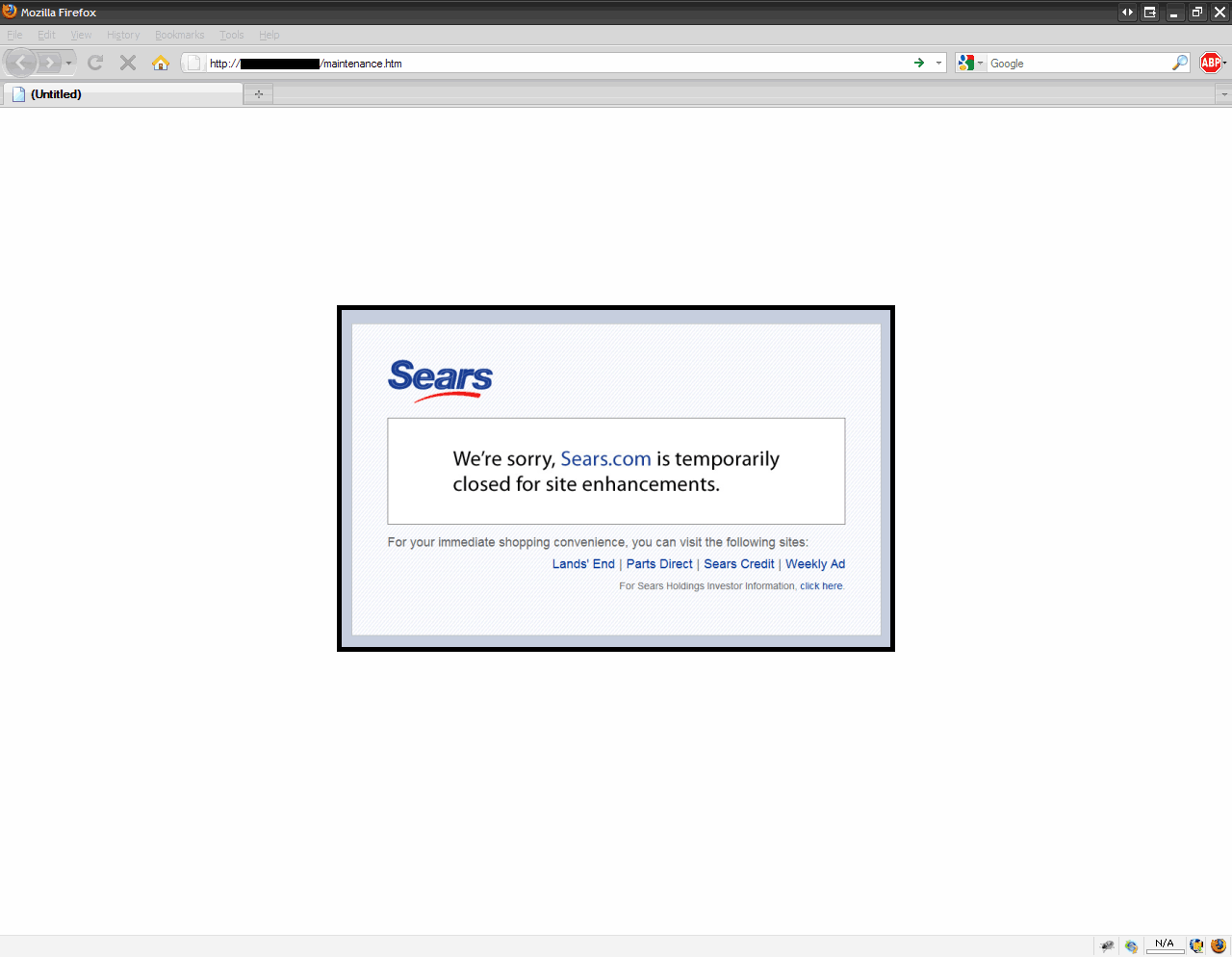
Now if you disable your service groups and check your maintenance page again, you can see how the website displays the full page with nice HTML, CSS, and images. In this example, I borrowed the Sears.com maintenance page. Notice how showing your company logo keeps your branding intact even on a maintenance page which is the correct way to handle a website issue. Tell your users you are aware of the problem and offer alternatives in the meantime (static links along the bottom to other servers that are up and offering content in this example). You don’t have to go that far but it’s always nice to let your user base know you haven’t disappeared and your infrastructure is solid. This is very professional and above all, automated! :)

The only problem here is that when your website is back up, users will still be refreshing on this maintenance.htm page. They will get a 404 error. So you have four options. I usually prefer number 4 personally but it all depends on your needs:

1. Change your maintenance.htm page to say index.htm or whatever page is the default page of the root of your website so when they refresh once the vserver is back up, they will get the live page. You will need to WinSCP into your Netscaler again and change the maintenance.htm file name as well as change it in your Responder Action. The issue here is if let’s say you are using .NET, you can’t call it index.aspx because Apache on the Netscaler can’t parse it.

2. Just create a link on the page that says “Click Here to Try Again” which is pointed at the correct index page. This assumes the end user will actually click the link instead of hitting refresh. You can’t be 100% sure they will do this.

3. Create a maintenance.htm page on your servers and then set IIS, Apache, or whatever web server you use to do a 301 redirect to your live index page. You can leverage the Netscaler to do the redirect too of course.

4. My preferred method. Create a new responder policy saying any maintenance.htm should automatically redirect to index.aspx and bind it only to your real vserver. That way anyone that requests that page when your servers are up will always be redirected to your index page. In this example, I will call my live site’s index page index.asp and call the action policy “action_mywebsite_index_redirect”. I will also make it redirect to SSL in this example because there is a login box on the index.asp page and I want to keep it secure using https:

I will call the responder policy “resp_policy_index_redirect” and for the expression, tell it to redirect any requests to “/maintenance.htm”:

HTTP.REQ.URL.CONTAINS("/maintenance.htm")

Now bind this to your live vserver:

Now you can test it by disabling and enabling your servers or service groups. It should transition automatically between your maintenance page and the live index page. :)

One thing I would like to point out. On any of your Responder Policies or Actions, you can always view the hit counter to see if the policy or action is being invoked. This might help you when you are setting this up initially and something goes wrong and you want to see if the policy or action is being hit:

So there it is. Your Netscaler is now an emergency web server that automatically puts up a professional looking maintenance page in a worst case scenario when every backend web server you have is down. A big thank you to Brian at Citrix for the help! If anyone can think of any improvements to this process or has any trouble with it, please reply I would love to hear about your experience.

How to tell what license and edition you have applied to a Netscaler VPX appliance

February 25th, 2011 1 comment

I get asked this question a lot. How do you tell what license you have applied to a Netscaler VPX appliance? The next question is what edition VPX do I have: Standard, Enterprise, or Platinum? Most people expect either one of these very important pieces of info would be displayed right along the top header where the IP and hostname are or at least under the main System window under the Hardware Information section but it is not. You can figure out what version you have by looking at the features of the appliance and looking at the current throughput to deduce the license and edition but that is not very practical. There are 3 ways you can see the current license applied easily without having to play detective:

1. Click Licenses under the System folder and the last item in the first column is “Model ID”. For physical devices, it will show the model number like 7500, 9500, 15000, 17500 etc. But for VPX appliances, it will say 1 for the the free VPX Express appliance (denoting the 1 Mbps limit) and 10, 200, 1000, or 3000 for the pay for licenses. If you just upgraded from the free version to a pay for version, you can verify it was applied here at a glance easily.

2. WinSCP down the license file from the appliance and open it in Notepad or any text editor. Make sure wordwrap is off. The third line of the license file will tell you the version. For example, something like this:

#CITRIXTERM FEATURE 1.0 CNS_V200_SERVER EN Citrix NetScaler VPX 200|Server

This means the license I have is for a VPX 200. If you take a look at the very first line and scroll to the right some, you can see the edition level info under INCREMENT on physical appliances:

CNS_SPE_SERVER

The SPE part means I have a Platinum Edition license. Standard Edition would be CNS_SSE_SERVER and Enterprise Edition would be CNS_SEE_SERVER.

On a VPX virtual appliance, it will never say this. Instead it will say something like:

CNS_V200_SERVER

which tells you it is a VPX 200, but you have no way of telling the edition. The only thing you can do to figure out what edition it is by looking at the features available to you and comparing to the the VPX feature matrix here or move on to option 3 below.

3. Login to MyCitrix.com and look at the license file there under Manage Assets. It will tell you which version you have. But when you have 50-60 Netscalers you might be responsible for, this becomes a bit tedious to wade through. You could also call Citrix Support and give them your license number and they can tell you what edition your license is but then you have to play the waiting game on the phone with them. Easier to just login to MyCitrix.com and go through your licenses.

Hope this helps. Please do post a reply if you have an easier way of identifying your VPX license edition level at a glance.

Categories: Citrix NetScaler Tags: ,