
By default, most applications write events to the Application Event Log. This is a great central place to write logs to but sometimes you might have a requirement to log informational events from an application and you don’t want it filling up your Application Event Log because of the sheer number of informational events you might get a short period of time. The solution is to create a custom event log for your application to hold these events. You can then set max log size, overwrite rules, filters, etc. on this event log while your Application Event Log remains clean and intact.
The first step is to create the new log. You have to do this in the registry. Open up regedit and navigate to:
HKEY_LOCAL_MACHINE\SYSTEM\ControlSet001\Services\Eventlog
Right click on the Eventlog key and click New > Key
Name this new key the same name you want your new event log to be named. By default it will create the new .evt file here:
C:\WINDOWS\System32\Config\New Key #1.evt
You can always rename it by editing the string value data in the registry if you like.
Now you need to add Sources to your new event log. Right click in the right window pane under your new key and add a new Multi-String value called “Sources” and add the name of each of your applications on each line. It should look something like this:
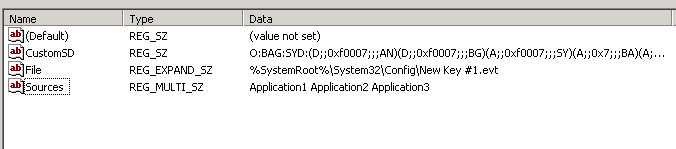
Now you need to move the association of your application from the Application event log to your new Custom log. Just expand the “Application” key located at:
HKEY_LOCAL_MACHINE\SYSTEM\ControlSet001\Services\Eventlog\Application
and copy whatever key you see in there for your app under your new Custom log:
HKEY_LOCAL_MACHINE\SYSTEM\ControlSet001\Services\Eventlog\CustomLog
There’s no copy/paste command so you can recreate the key if it’s small or you can export/import if it’s something complicated and you are afraid of mistyping something. MAKE SURE to delete it from Application after you add it to the Custom log or it will not write events to your new log since Windows thinks its still associated with the Application log. If it is a custom source, you need to create a DWORD value under this key with the value of 1:

You will also notice my custom app in this example is a .NET 2.0 appliaction so I want .NET to write the events to the log. I have to create a string value called EventMessageFile and give it the path to the .NET 2.0 event log message dll:
C:\WINDOWS\Microsoft.NET\Framework\v2.0.50727\EventLogMessages.dll
Now you should reboot your server. When it’s back up, check and see if your new event log appears under Event Viewer. If your application is not writing events to your new log, test it manually by opening a command prompt and going to:
C:\WINDOWS\system32
and typing:
eventcreate /l CustomLog /t Information /so Application1 /id 1 /d "Test message"
You should get a message saying it was successfully written or you should get an error message with details on why it was not written. If you followed the steps in this blog post, it should write the event just fine.

Jason Samuel is a visionary product leader and trusted advisor with a proven track record of shaping strategy and driving technology innovation. With extensive expertise in enterprise end-user computing, security, cloud, automation, and virtualization technologies, Jason has become a globally recognized authority in the IT industry. His career spans consulting for hundreds of Fortune 500 enterprises across diverse business sectors worldwide, delivering cutting-edge digital solutions from Citrix, Microsoft, VMware, Amazon, Google, and NVIDIA that seamlessly balance security with exceptional user experiences.
Jason’s leadership is amplified by his dedication to knowledge-sharing as an author, speaker, podcaster, and mentor within the global IT and technology community. Recognized with numerous prestigious awards, Jason’s contributions underscore his commitment to advancing technology and empowering organizations to achieve transformative results. Follow him on LinkedIn.
Disclaimer: Views expressed here are his own and do not reflect the views of his employer, past or present, or any organizations he is affiliated with. Content is for informational or personal purposes only.



AA
February 22, 2010 at 11:31 AM
This worked wonderfully. I used my own custom log and created a test log with the event create statement. one change is that it did not needed source (/so) parameter.
Pingback: Use Eventlogs Properly! | the angry admin
AB
September 14, 2011 at 10:13 AM
Can I create the EventLog using code instead of doing it manually and rebooting the server? I see that source for the eventlog can be created using the code.
Thanks!
Pedro
January 18, 2012 at 3:18 PM
Hey, I am trying to use this on a win7 but when I create the new key only the (default) field appears, where or how I add the source?
Thanks
Stephen
February 15, 2012 at 9:13 AM
Is there any issue with writing to the custom log when the web server and application is using medium trust?
Astrogator7
March 27, 2012 at 12:37 PM
Does anybody have any luck using this approach to redirect SQL Server’s events?
Following the article I created a new event log ‘SQLServer’, verified that it is visible in Event Log MMC, added a new event into it from command line via
EventCreate /l "SQL Server" /t information /so Console /id 1 /d "Log created"SUCCESS: A 'information' type event is created in the 'Console' log/source.
A new custom source key ‘Console’ got created under HKLM\System\CurrentControlSet\Services\Eventlog\SQLServer\, and it also got added to ‘Sources’ multi-sz value.
Now when I try to follow a similar logic and switch ‘MSSQLSERVER’ source from ‘Application’ log to the new one (by moving the key and eliminating it from App’s ‘Sources’ multi-sz) I get the following:
EventCreate /l "SQLServer" /t information /so MSSQLSERVER /id 1 /d "Log created"ERROR: Source parameter is used to identify custom application/scripts only (not built-in sources).
If I add ‘DWORD:CustomSource=1’ value under HKLM\..\Eventlog\SQLServer\MSSQLSERVER\, then the error disappears, but besides explicit attempts from command line:
EventCreate /l "SQLServer" /t information /so MSSQLSERVER /id 2 /d "Log created"SUCCESS: A 'information' type event is created in the 'MSSQLSERVER' log/source.
nothing gets written to ‘SQLServer’ event log from the real SQL service.. or anywhere else for that matter! Once I restore back original MSSQLSERVER source under ‘Application’ log and restart SQL, it continues logging to App Event Log as it did originally.
Would not be a problem, if it was not flooding App log with loads of unimportant fluff!
Greynault
March 30, 2012 at 2:25 PM
If you are running an application on a 2008 server, then as you publish it using IIS 7.0, give your app pool an Administrator Identity. Make sure to add code into your application that creates the log.
try{
EventLog.CreateEventSource(“MyLog”, “MyLog”);
}catch(Exception exc){ }
Then write all your logs to that EventLog
EventLog.WriteEntry(“MyLog”, “…something…”);
Then navigate to your web application. Reference the page with the code that creates the log, and then you can reduce the permission of your app pool identity back to whatever it was before. It will continue to write to this EventLog.
Stephen
April 4, 2012 at 3:17 PM
Due to security requirements we can not grant an app pool account local adminsitrator privileges. I would think that this bypass the intent of the new security model under IIS 7.x.
Pingback: Redirect SQL Server’s events from std Application log into a custom one
Pingback: Create test events | ohelge
Phillip Maye
February 15, 2017 at 7:42 PM
i will create this custom