Archive

Archive for January, 2010

A quick way to troubleshoot SSL chain issues using OpenSSL

January 14th, 2010 No comments

You can use OpenSSL and run this command:

openssl.exe s_client -connect www.mysite.com:443

which will use a generic SSL/TLS client to connect to your site and give you a ton of diagnostic info.  You can see your entire SSL cert chain, the SSL handshake, SSL session info, etc.  Here’s a full list of switches you can use with it:  http://www.openssl.org/docs/apps/s_client.html

And here’s a great online tool to graphically verify your SSL chain is intact:  http://www.sslshopper.com/ssl-checker.html

How to tell which COM+ Application belongs to what dllhost.exe in IIS

January 13th, 2010 No comments

Not to mention the .NET runtime, dllhost.exe also hosts COM+ processes.  So how can you tell what each dllhost.exe is running?  Download tlist.exe (part of the Debugging Tools for Windows).  You can read more about the util here:  http://msdn.microsoft.com/en-us/library/cc267860.aspx

It’s just a simple task list viewer that displays info about the process.  There are tons of utils out there than can do the same thing but tlist.exe is a mere 50 KB command line util which is why I like to keep it around for quickly gathering info. 

The command I use to check the dllhost.exe is:

tlist -k | find /i "dllhost.exe"

and it outputs the processes, process IDs, and the related COM+ process.

Categories: IIS Tags: ,

Using Log Parser to query huge log files and only display the results you need

January 12th, 2010 1 comment

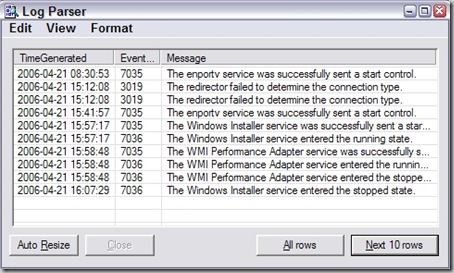
Have you ever had a giant log file or CSV that you needed to go through and pull results from quickly?  Sure you can try dumping it into Excel and trying different filters and sort orders but that’s a waste of time.  It’s much faster to pull your data via a query like in a database.  Microsoft has a tool called Log Parser that does just that.  You can use queries to parse any kind of text based file.

You can download Log Parser 2.2 from Microsoft here:  http://www.microsoft.com/downloads/details.aspx?FamilyID=890cd06b-abf8-4c25-91b2-f8d975cf8c07&displaylang=en

Just install it and try it out by opening up a command prompt, navigating to your install path, and running the logparser executable.  It will display a list of commands to get you familiar with it.   I first started using it to parse huge IIS logs.  It’s pretty easy to use, here’s an example of pulling the top 10 pages hit on your site:

logparser "SELECT TOP 10 cs-uri-stem as Url, COUNT(cs-uri-stem) AS Hits FROM c:\logs\ex*.log GROUP BY cs-uri-stem ORDER BY Hits DESC"

or all the Error 500s for a particular site:

logparser "SELECT [cs-uri-stem], [cs-uri-query], Count(*) AS [Hits] FROM c:\logs\ex*.log WHERE sc-status = 500 GROUP BY [cs-uri-stem], [cs-uri-query] order by [hits], [cs-uri-stem] DESC" -rtp:-1 -i:iisw3c

You can even throw the above in a batch file that schedule to run every hour and do something like:

All5005Errors.bat > All500Errors.txt

to log it all to disk.  Or even easier, use INTO in your SQL syntax to dump to a file like a .csv so it reads like:

logparser "SELECT [cs-uri-stem], [cs-uri-query], Count(*) AS [Hits] INTO All500Errors.csv FROM c:\logs\ex*.log WHERE sc-status = 500 GROUP BY [cs-uri-stem], [cs-uri-query] order by [hits], [cs-uri-stem] DESC" -rtp:-1 -i:iisw3c

There’s tons and tons of nice little queries people have written, for example I’ve personally used some from Jeff Atwood’s site here:  http://www.codinghorror.com/blog/archives/000369.html

Or you can got to the IIS.NET forums where there is an entire forum and many sub-forums dedicated to Log Parser here:  http://forums.iis.net/default.aspx?GroupID=51

Another cool tool over at CodePlex…Visual Log Parser:  http://www.codeplex.com/visuallogparser

I actually haven’t used this yet but it is out there if you get bored of using command line.  LMK if you guys decide to try it out.

Creating a custom event log under Event Viewer to log server events

January 8th, 2010 7 comments

By default, most applications write events to the Application Event Log.  This is a great central place to write logs to but sometimes you might have a requirement to log informational events from an application and you don’t want it filling up your Application Event Log because of the sheer number of informational events you might get a short period of time.  The solution is to create a custom event log for your application to hold these events.  You can then set max log size, overwrite rules, filters, etc. on this event log while your Application Event Log remains clean and intact.

The first step is to create the new log.  You have to do this in the registry.  Open up regedit and navigate to:

HKEY_LOCAL_MACHINE\SYSTEM\ControlSet001\Services\Eventlog

Right click on the Eventlog key and click New > Key

Name this new key the same name you want your new event log to be named.  By default it will create the new .evt file here:

C:\WINDOWS\System32\Config\New Key #1.evt

You can always rename it by editing the string value data in the registry if you like.

Now you need to add Sources to your new event log.  Right click in the right window pane under your new key and add a new Multi-String value called “Sources” and add the name of each of your applications on each line.  It should look something like this:

Now you need to move the association of your application from the Application event log to your new Custom log.  Just expand the “Application” key located at:

HKEY_LOCAL_MACHINE\SYSTEM\ControlSet001\Services\Eventlog\Application

and copy whatever key you see in there for your app under your new Custom log:

HKEY_LOCAL_MACHINE\SYSTEM\ControlSet001\Services\Eventlog\CustomLog

There’s no copy/paste command so you can recreate the key if it’s small or you can export/import if it’s something complicated and you are afraid of mistyping something.  MAKE SURE to delete it from Application after you add it to the Custom log or it will not write events to your new log since Windows thinks its still associated with the Application log.  If it is a custom source, you need to create a DWORD value under this key with the value of 1:

You will also notice my custom app in this example is a .NET 2.0 appliaction so I want .NET to write the events to the log.  I have to create a string value called EventMessageFile and give it the path to the .NET 2.0 event log message dll:

C:\WINDOWS\Microsoft.NET\Framework\v2.0.50727\EventLogMessages.dll

Now you should reboot your server.  When it’s back up, check and see if your new event log appears under Event Viewer.  If your application is not writing events to your new log, test it manually by opening a command prompt and going to:

C:\WINDOWS\system32

and typing:

eventcreate /l CustomLog /t Information /so Application1 /id 1 /d "Test message"

You should get a message saying it was successfully written or you should get an error message with details on why it was not written.  If you followed the steps in this blog post, it should write the event just fine.

How to convert an SSL cert to a .pem for installation on Citrix and Cisco appliances

January 7th, 2010 1 comment

Often times you might have to add an SSL cert to a Cisco or Citrix appliance (like a Netscaler) but it only accepts the SSL cert and private key in a certain format.  Your CA (certificate authority) will issue the SSL cert to you as a .crt.  From there, you need to package the cert with the private key and in the format your appliance requires.  There are different ways to do this and one easy way I like is using IIS and OpenSSL which is a free open source tool and can be downloaded here:  http://www.openssl.org

1. Create a temporary site in IIS and generate a CSR.  Make sure the CN (common name) you enter matches whatever appliance you are trying to generate it for exmp:  wireless.mycompany.com

2.  Submit the CSR to your CA such as Verisign, GoDaddy, Network Solutions, etc. and wait for them to validate and issue your cert.

3. Get the .crt from the CA once they issue it and convert it to .cer.  Just open the .crt by double clicking on it and and save it as .cer using the export wizard.  This is necessary since IIS does not accept .crt.


4. Install the .cer in IIS using the Web Server Certificate Wizard where you originally generated the CSR.  Just process the pending request to install it.

5. View the cert in IIS and export it with the private key in pkcs12 (.pfx) format.  Just set the password as “password” since you will be deleting it after conversion is complete later.

6. Go to the directory where OpenSSL.exe is and type in the following to convert the .pfx to a .pem

openssl pkcs12 -in nameofcert.pfx -out nameofcert.pem

7. Type the “password” when prompted for the pass phrase.

8. Install the .pem on the appliance and it should work

IMPORTANT NOTE:

If you are doing it for some appliances like a Cisco IronPort, you need to add the nodes switch when creating the .pem:

openssl pkcs12 -in nameofcert.pfx -out nameofcert.pem –nodes

The –nodes switch ensures that the key inside the .pem is left unencrypted.  If you attempt to install a .pem created without the -nodes switch, the appliance will take the cert but will not accept the private key since it cannot read it in an encrypted state.